
Appearance
Export invoices
GST Manager provides dedicated numbering and statutory declarations for cross-border transactions:
- Parallel numbering: Assigns dedicated sequential identifiers (e.g.
EXP-2026-1001) alongside standard AcelleMail invoice numbers. - Regulatory compliance: Preserves clean audit trails for FEMA, RBI, and GST export reporting.
- Optional configuration: Enable or disable independently based on business requirements.
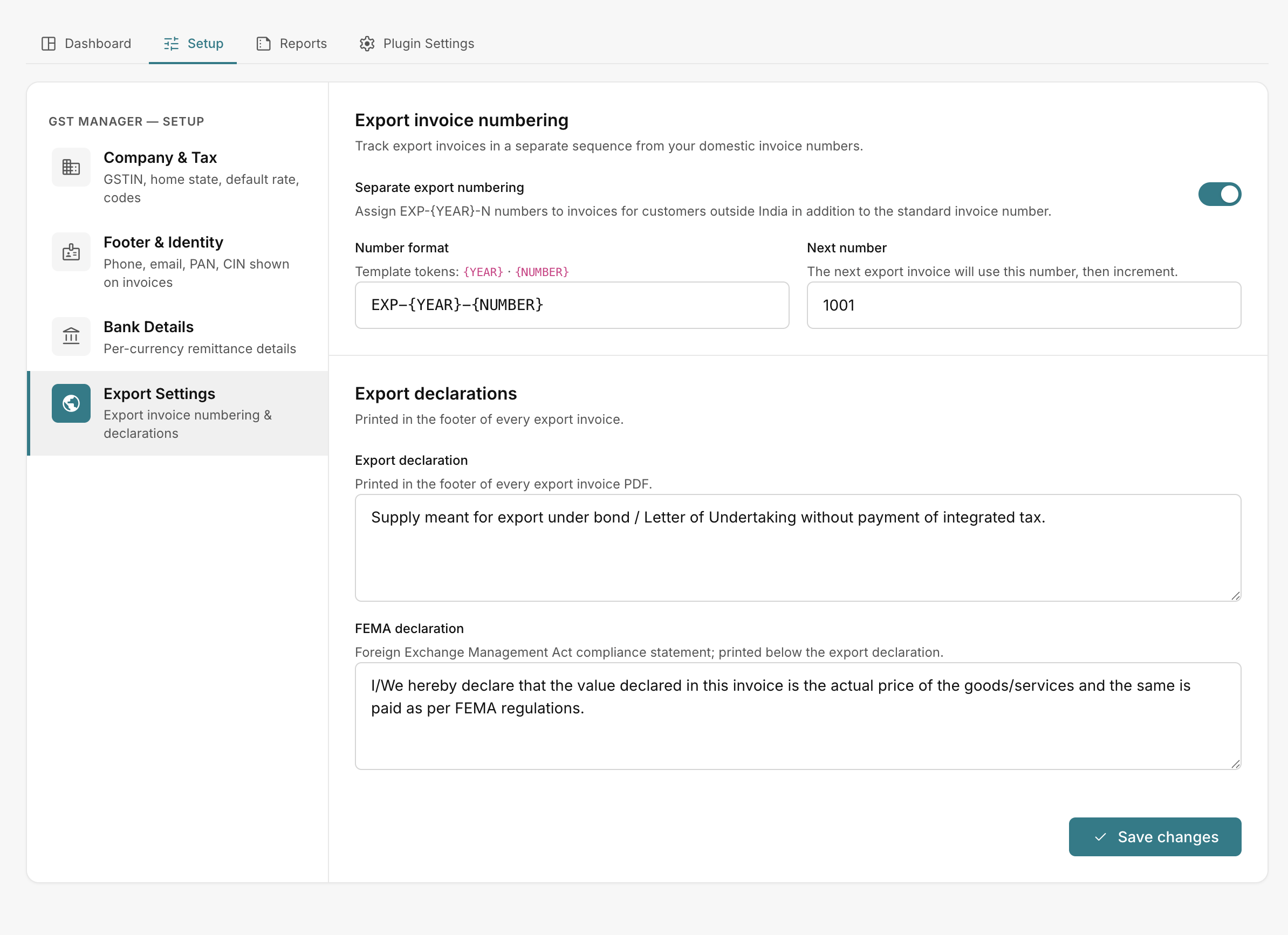 GST Manager → Setup → Export Settings
When a number is assigned
Export numbers follow strict lifecycle triggers:
- Payment trigger: Assigned automatically when an export invoice status changes to Paid.
- No sequence gaps: Unpaid or abandoned checkouts do not consume numbers.
- Dual identifiers: Invoices retain their primary AcelleMail number while displaying the additional
EXP-identifier. - Classification criteria: Invoices qualify when the customer billing country is outside India. See GST classification.
Enabling export numbering
Configure settings under GST Manager → Setup → Export Settings:
- Enable Separate export numbering ("Assign EXP-{YEAR}-N numbers to invoices for customers outside India in addition to the standard invoice number.").
- Configure Number format using supported template tokens (e.g.
EXP-{YEAR}-N). - Set Next number to seed your starting sequence counter.
- Enter your statutory Export declaration text.
- Enter your FEMA declaration text ("Foreign Exchange Management Act compliance statement; printed below the export declaration.").
- Click Save changes to confirm ("Settings saved.").
PDF declaration placement
Statutory export details are rendered directly on the PDF:
- Document header: Displays Export Invoice title and dedicated Export no. field.
- Document footer: Prints the Export declaration and FEMA declaration beneath line items and banking details.
For visual styling and field positioning, see Invoice PDF.