
Appearance
Razorpay for AcelleMail
This plugin provisions two payment gateways in AcelleMail: Razorpay (one-time invoice settlement) and Razorpay Subscription (automated recurring billing). Both gateways share unified credentials and license settings.
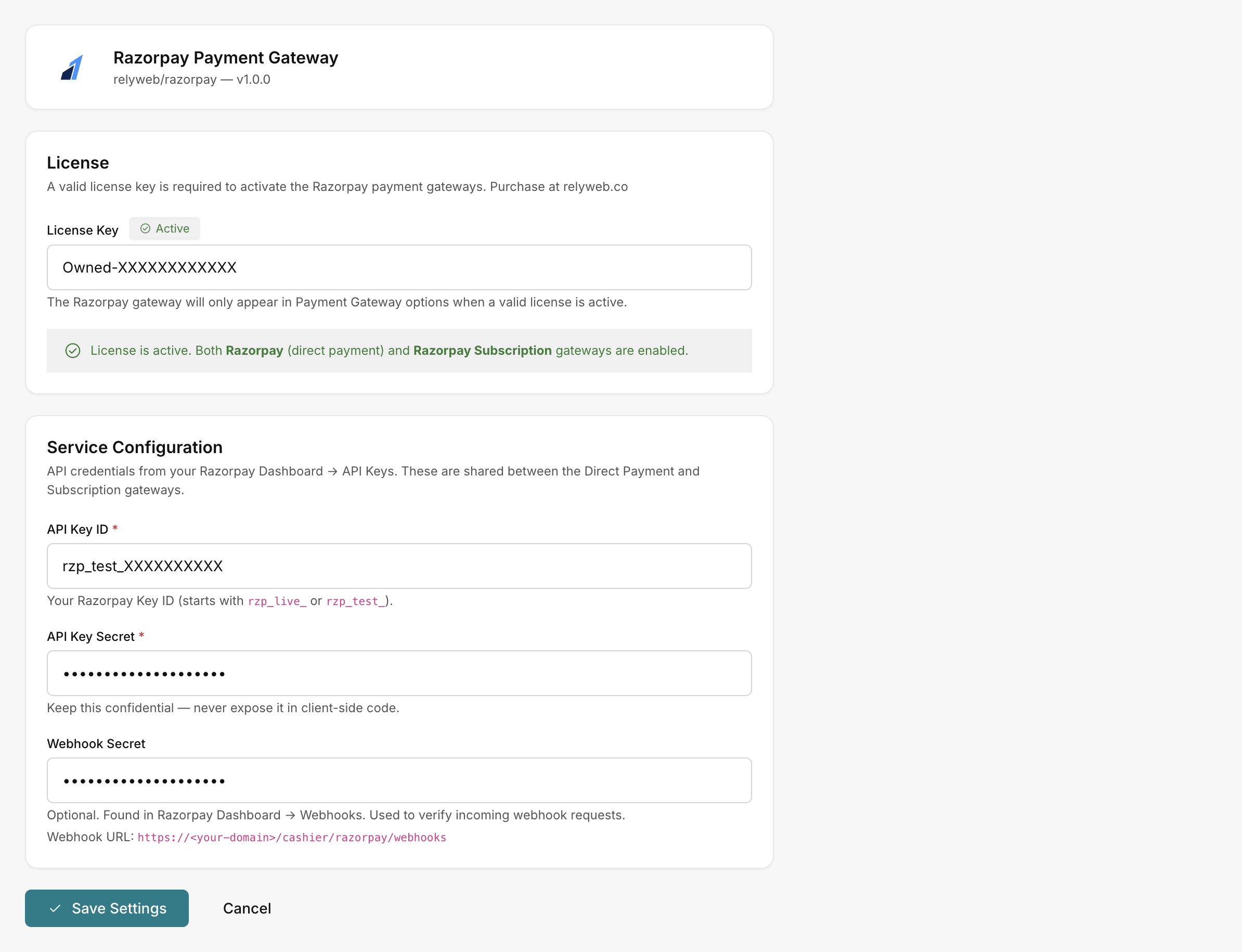 Admin → Plugins → Razorpay → Settings
Scope and capabilities
- Currency: INR only (applicable to INR-priced plans).
- Payment methods: UPI, credit/debit cards, net banking, and digital wallets.
- Environment switching: Controlled by API key prefix (
rzp_test_vsrzp_live_).
What you get
| Area | What it does |
|---|---|
| Direct Payment | The Razorpay gateway — one-time invoice payments via Razorpay checkout |
| Subscriptions | The Razorpay Subscription gateway — recurring plans with automatic renewal |
| Shared credentials | Key ID, Key Secret and an optional Webhook Secret, set once and shared by both gateways |
| License-gated | Both gateways stay hidden until your license is Active, then appear automatically |
| Webhook-verified | Payment, subscription and webhook events are HMAC-SHA256 signature-verified |
How it fits into AcelleMail
- Upload and activate the plugin archive in AcelleMail.
- Configure your license key and Razorpay API credentials under Admin → Plugins → Razorpay → Settings.
- Click Save Settings to automatically register Razorpay and Razorpay Subscription in Admin → Payment Gateways.
Enter your license and keys first
The gateways only appear once a valid license is Active and you've saved your Razorpay Key ID and Key Secret. See Installation and Licensing.
Where to go next
- Requirements — server, account and license
- Installation — upload, activate, enter keys, save
- Get your API keys — Key ID and Key Secret
- Configure webhooks — verify event callbacks
- Set up subscriptions — remote plan mapping
- Settings reference — configuration field options
- Error reference — troubleshooting error strings