
Appearance
Updating
GST Manager provides integrated in-place updates directly through the AcelleMail admin interface:
- In-place workflow: Check release status, download, and apply updates without manual SSH file transfers.
- Pre-update safety: Automatically captures a database snapshot before applying changes.
- Automatic rollback: Reverts to the previous working version if any update step encounters an error.
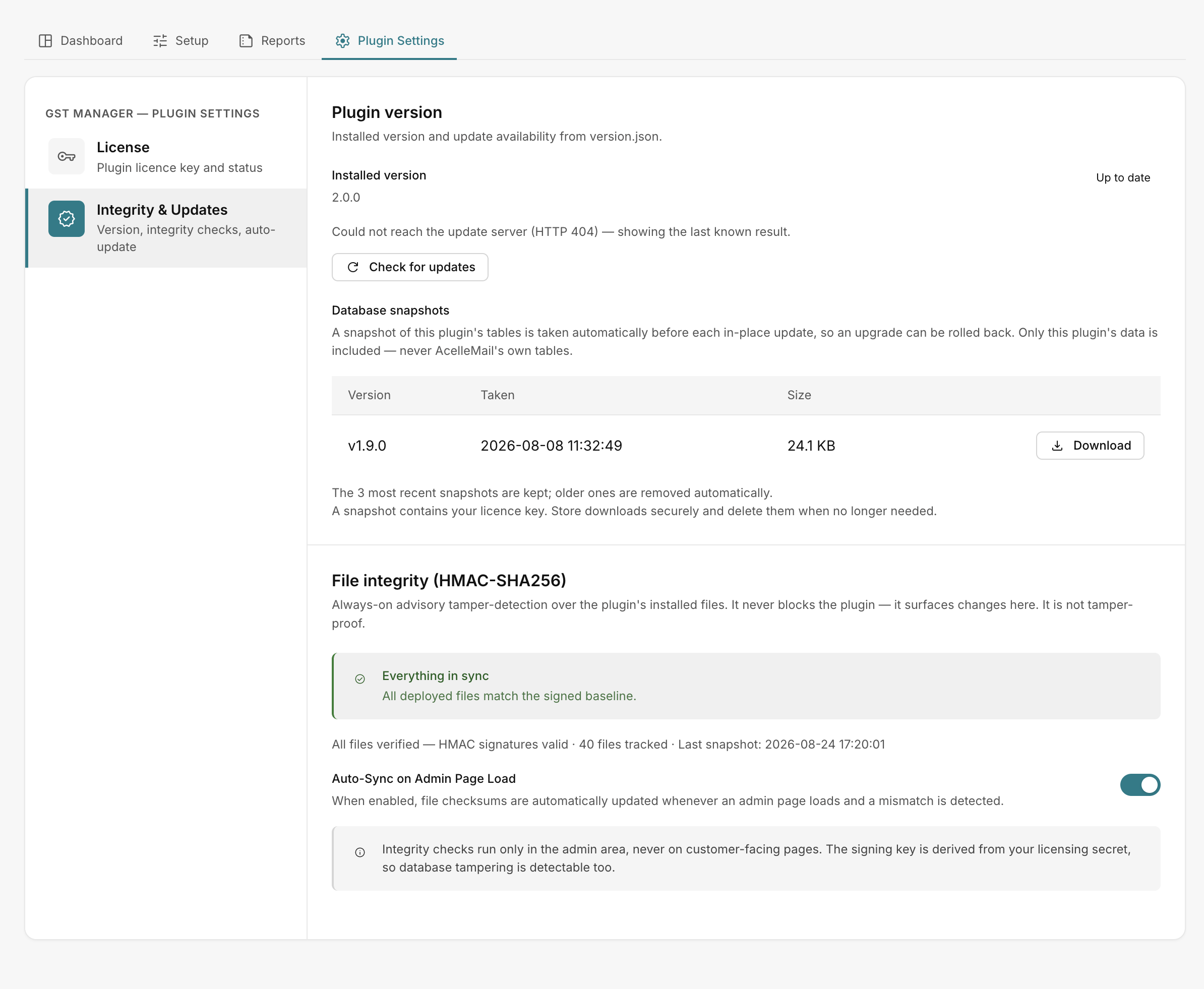 GST Manager → Plugin Settings → Integrity & Updates
Checking for updates
Navigate to GST Manager → Plugin Settings → Integrity & Updates:
- Review your Installed version at the top of the panel.
- Click Check for updates to query the Relyweb release registry.
- Review the reported response:
- Update available: Displays Version :v available, Released :date, and a View changelog link.
- Up to date: Confirms your current build matches the latest release.
- Unreachable server: Displays "Could not reach the update server (...). Your plugin continues to work normally." (no immediate action required; plugin remains fully operational).
On-demand check
Checking for updates performs a read-only query. Files and database records remain unchanged until you explicitly initiate an update.
Applying in-place updates
When a new version is available, complete the update workflow:
- Click Update now.
- Confirm the prompt: "Download and install v:v now? A backup of the current version is taken first."
- The automated updater executes the following stages sequentially:
- License check: Re-validates active license status.
- Download & verify: Retrieves release archive and validates HMAC checksums.
- Database backup: Captures a snapshot of plugin tables (
gstmgr_*). - Extraction & cutover: Deploys new files and updates database schemas.
- On successful completion, the banner displays "Updated to v:v successfully."
Alternative manual upload
To update manually, download the latest release archive from your Relyweb client portal and upload via Admin → Plugins → Upload Plugin.
Update entitlements by license type
Access to new releases depends on your active license plan:
| License Type | Update Entitlement | Plan Expiration Behavior |
|---|---|---|
| Leased | All updates included during active term. | Plugin continues working on installed version. |
| Lifetime | Updates included with active Support & Updates. | Installed version works permanently; renew to access newer builds. |
Troubleshooting update failures
If an update cannot complete, review the error message:
- Plan expired: "Your Support & Updates plan has expired or is not active. Renew it to install updates. Your current version continues to work normally." Renew coverage via your client portal.
- Artifact pending: "vX is published but its download is not yet available — please contact support." Contact support@relyweb.co.
- Registry unreachable: Outbound network connection timeout. Retry later.
- Verification/Extraction error: Displays "Update failed: :reason". System rolls back automatically. Re-try or perform manual plugin upload.
For full error string reference, see the Error reference.
Related pages
- Backup and restore — snapshot retention and restore
- Licensing — license entitlements
- File integrity — checksum verification
- Error reference — message catalog
- Troubleshooting — resolution workflows