
Appearance
Updating
RelyPay includes a native one-click updater with built-in backup protections:
- Automated checks: Queries the release server daily and caches update status.
- Safety rollback: Captures a pre-update snapshot before applying file changes.
- Flexible workflows: Supports both automated one-click upgrades and manual ZIP replacements.
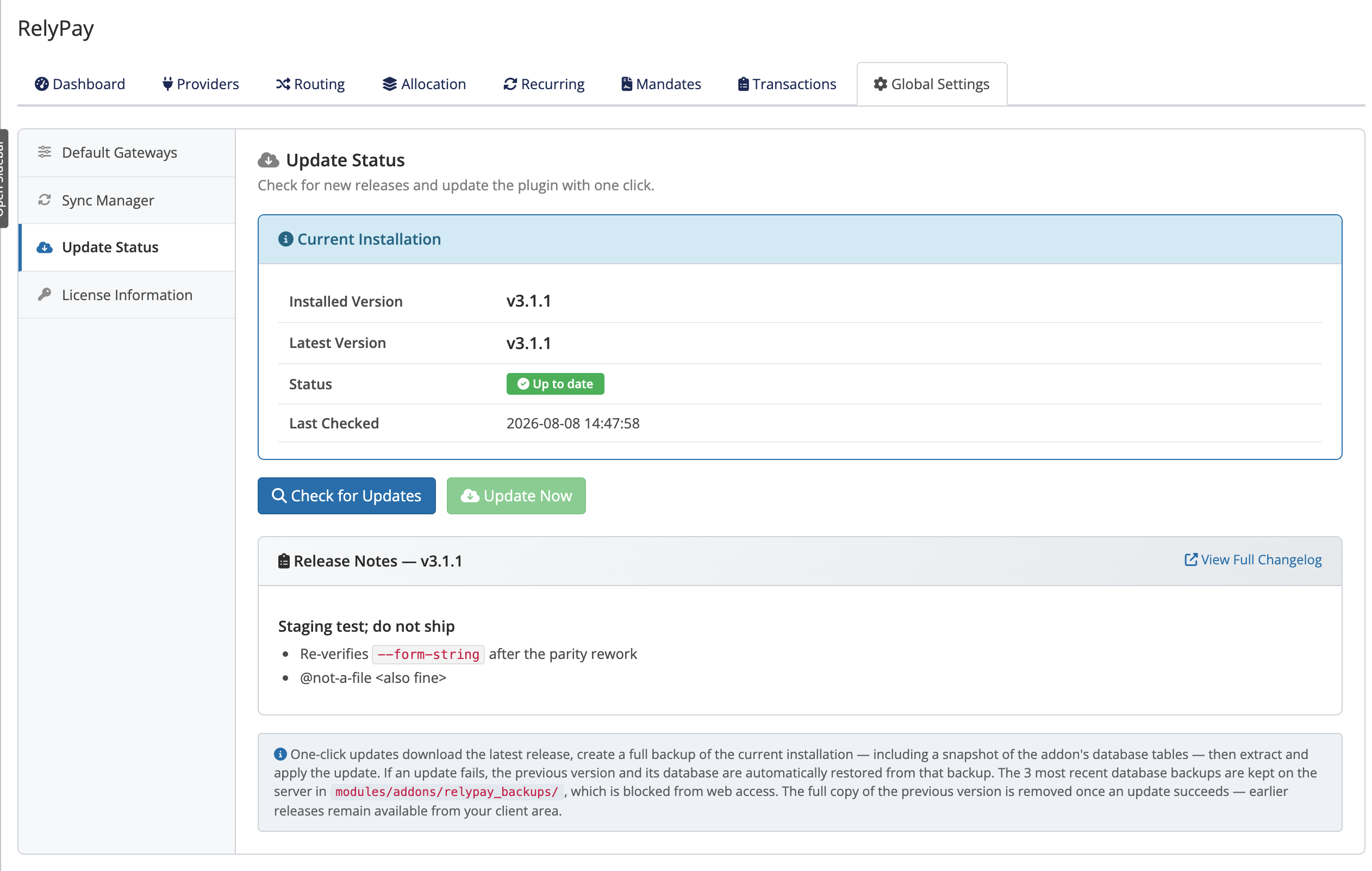 Addons → RelyPay → Global Settings → Update Status
One-click update
- Go to Addons → RelyPay → Global Settings → Update Status. The Current Installation panel shows the version you're running now.
- Click Check for Updates. If a newer version is available, its release notes appear.
- Click Update Now. RelyPay downloads the release, backs up first, applies the update, and reloads.
TIP
Every one-click update takes an automatic backup before it changes anything, and restores automatically if something goes wrong. See Backup & restore for details.
Automatic daily check
RelyPay polls for new releases once daily and caches the response:
- Instant visibility: The Update Status panel displays update notifications immediately upon admin page load.
- Admin control: Applying updates requires explicitly clicking Update Now.
Manual update
If you'd rather update by hand — for example, if outbound HTTPS from your server is restricted:
- Download the latest ZIP from your client area.
- Replace the
modules/addons/relypay/directory on your WHMCS install with the new files. - Open Addons → RelyPay so the module re-syncs its deployed files.
INFO
A manual update replaces the addon files directly, so it does not create the automatic pre-update backup that the one-click flow does. Take your own backup of modules/addons/relypay/ and your database before you begin.
Lifetime and Support & Updates
- Leased licenses: Includes all updates while the subscription remains active via Update Now.
- Lifetime licenses: Grants perpetual rights to the installed version. Upgrading to newer releases requires an active Support & Updates plan; an expired plan keeps the current version running normally.
See Licensing for how the license types differ.
If an update won't apply
If Update Now is disabled or an update fails:
- Common causes: Expired Support & Updates plan, server file permission issues, or temporary network timeouts.
- Safe state: Pre-update backups restore files and database tables automatically on failure. See Error reference and Troubleshooting.
Related pages
- Backup & restore — the backup, restore, and rollback story
- Licensing — how your license type affects updates
- Troubleshooting — resolving update problems