
Appearance
Connect PayGlocal
PayGlocal powers international cards and RelyPay's recurring / Standing Instruction (SI) mandates. Configure credentials on the Addons → RelyPay → Providers page.
No PayGlocal account yet? Apply for a PayGlocal merchant account.
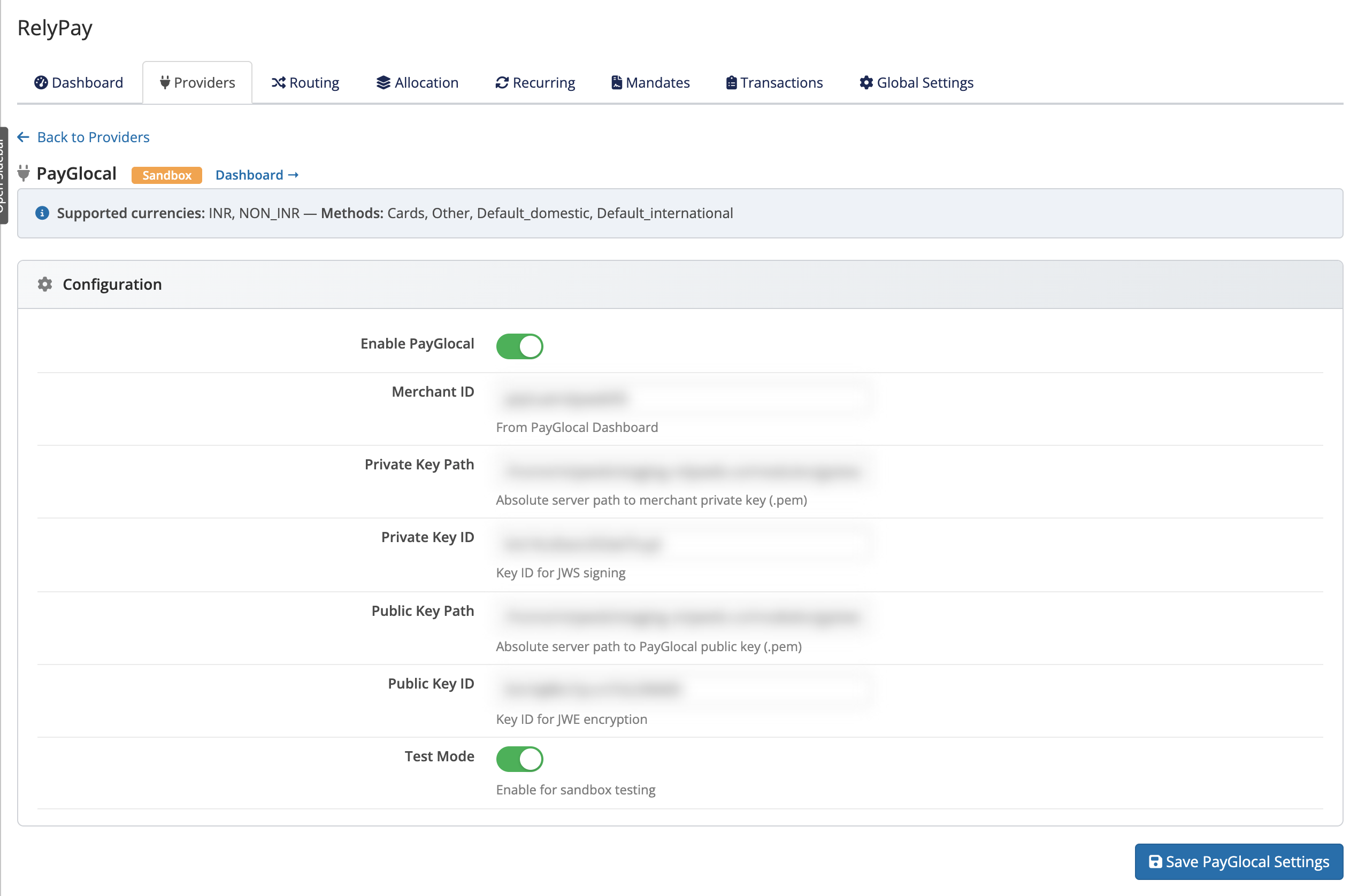 Addons → RelyPay → Providers → PayGlocal
Credentials you will need
PayGlocal uses a pair of signing/encryption keys stored as .pem files on your server, plus their IDs. On the PayGlocal card, fill in these fields exactly:
| Field | Where to find it / what to enter |
|---|---|
| Merchant ID | From PayGlocal Dashboard |
| Private Key Path | Absolute server path to merchant private key (.pem) |
| Private Key ID | Key ID for signing |
| Public Key Path | Absolute server path to PayGlocal public key (.pem) |
| Public Key ID | Key ID for encryption |
Upload both .pem files to your server first, then enter their absolute paths. The private key signs your requests; the public key encrypts data for PayGlocal.
Keep your key files private
Store the .pem files outside the web root, or otherwise block web access to them. They are credentials — anyone who can read them can act as your merchant account.
Options
- Test Mode — toggle. Enable for sandbox testing. Use PayGlocal's sandbox while you trial the integration; disable it for live payments.
Recurring on international cards
PayGlocal enables recurring payments via Standing Instructions on international cards:
- Mandate registration: Created during the initial international card checkout.
- Scheduled execution: The daily WHMCS cron auto-charges renewal invoices within configured multiplier caps. See Recurring payments.
Test it
- Click Test Connection on the PayGlocal card to confirm your credentials and key paths are valid.
- Enable PayGlocal and save.
- Place a test international-card payment through a RelyPay sub-gateway, and confirm the result appears in the transaction log with PayGlocal as the provider.