
Appearance
File integrity and sync
RelyPay deploys core gateway files to your server (ten sub-gateways, callback handlers, and checkout modules):
- Integrity verification: Validates deployed files against a signed cryptographic snapshot to catch drift or tampering.
- Access path: Located at Addons → RelyPay → Global Settings → Sync Manager.
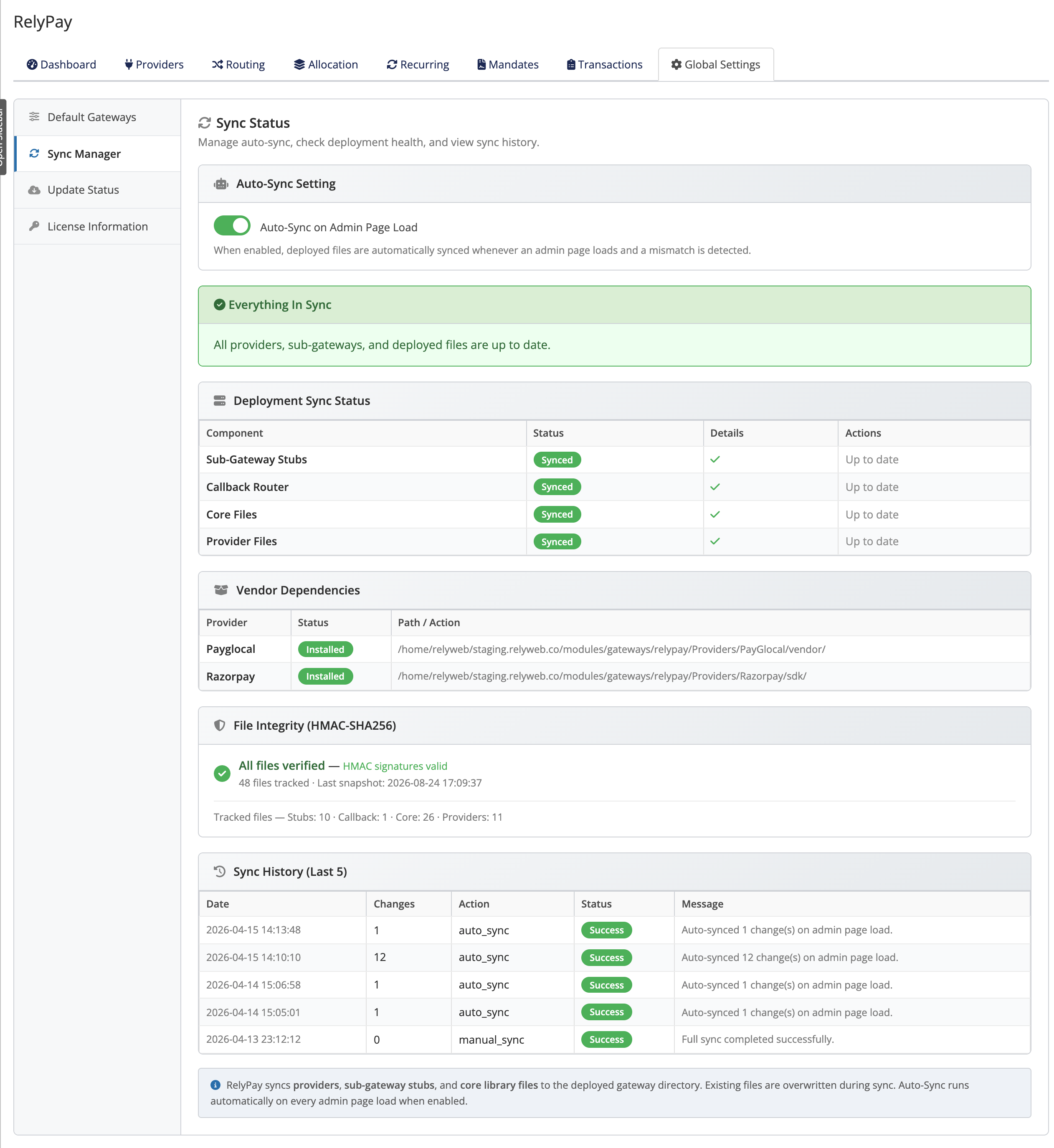 Addons → RelyPay → Global Settings → Sync Manager
What it protects you from
- Tampering. If a deployed gateway file is modified — by a mistaken edit, a bad restore, or something less friendly — RelyPay notices, because the file no longer matches its signed snapshot.
- Mismatches. After changes such as an update or a configuration edit, a deployed file can fall out of step. Sync spots the difference and brings the file back in line.
The result: the files that take your customers' payments are always the ones RelyPay intends them to be.
The Auto-Sync toggle
Located at the top of Sync Manager, the Auto-Sync on Admin Page Load setting automates maintenance:
- Automatic verification: Checks deployed files on each admin page load.
- Automated remediation: Re-syncs drifted files immediately without requiring manual intervention.
Reading the Sync Manager
The panel shows, at a glance, whether anything needs attention:
- A Sync Required or Everything In Sync banner. When all is well it reads: "All providers, sub-gateways, and deployed files are up to date."
- A Deployment Sync Status table listing each component with its Status, Details and a per-component Sync action.
- A Vendor Dependencies table showing each provider's supporting files and their status.
- A File Integrity panel that verifies deployed files against the signed snapshot and flags any file that has been tampered with or is missing.
- A Sync History (Last 5) list, so you can see recent sync activity and its result.
If anything is flagged, you can fix a single component with its Sync action, or use Sync All to bring everything back into line in one step.
When a sync is needed
Most of the time you never touch this — Auto-Sync handles it. Run a sync manually when:
- The banner shows Sync Required, or the File Integrity panel flags a file.
- You have just updated RelyPay and want to confirm everything deployed cleanly.
- You changed something on the server (for example a manual file operation or a restore) and want the deployed files re-verified.
Sync All is safe
Running Sync All simply re-deploys the correct, signed versions of RelyPay's files. It does not touch your provider credentials or transaction history, so you can run it whenever the banner asks.
Integrity verification
File integrity monitoring validates that live payment files match official release signatures. Discrepancies are flagged immediately and can be resolved using Sync All.
Related pages
- Updating — sync runs naturally around updates
- Configuration — the providers whose files sync verifies
- Troubleshooting — what to do if a sync keeps flagging the same component