
Appearance
Updating
GST Manager provides automated update management and rollback safeguards:
- One-click updates: Directly updates the module from the WHMCS admin area.
- Automated backups: Captures a pre-update file and database snapshot before executing updates.
- Daily checks: Checks for new releases daily in the background.
- Safe fallback: Reverts files and database automatically if an update fails.
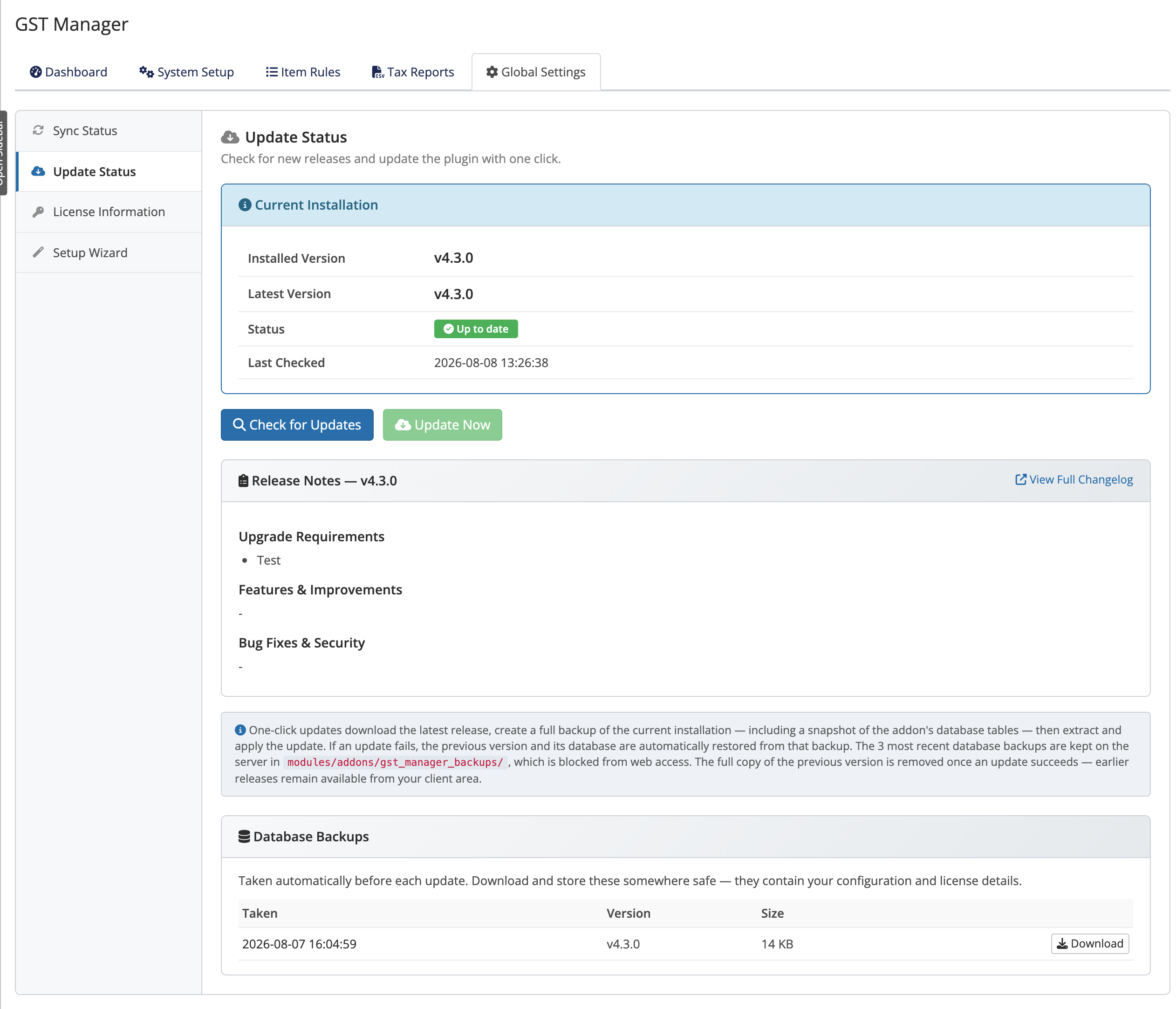 Addons → GST Manager → Global Settings → Update Status
One-click update
Execute updates under Addons → GST Manager → Global Settings → Update Status:
- Check version: Review the Current Installation version panel.
- Scan for updates: Click Check for Updates to view release notes.
- Apply update: Click Update Now to create a backup, download files, apply patches, and reload.
TIP
Every one-click update takes an automatic backup before it changes anything, and restores automatically if something goes wrong. See Backup and restore for details.
Automatic daily check
The module runs automated background release checks:
- Cached availability: Queries release servers once daily and caches the response.
- Instant status: The Update Status panel displays update availability upon opening.
- Manual control: Updates are only applied when you deliberately click Update Now.
Manual update
To update manually when outbound server connections are restricted:
- Download archive: Obtain the latest release ZIP from your client area.
- Replace files: Overwrite the
modules/addons/gst_manager/directory on your server. - Re-sync templates: Open Addons → GST Manager to trigger template and database synchronizations.
Lifetime and Support & Updates
- Leased licenses: Include continuous update access while the subscription remains active.
- Lifetime licenses: Include perpetual usage of installed releases; upgrading to newer versions requires an active Support & Updates plan.
- Lapsed entitlements: Invoicing and tax calculations continue working uninterrupted; only the Update Now action is restricted. Check status under Global Settings → License Information.
See Licensing for license model differences.
If an update won't apply
If Update Now is disabled or returns an error:
- Lapsed support: Verify Support & Updates entitlement is active.
- File permissions: Ensure
modules/addons/gst_manager/has write permissions. - Network connectivity: Confirm outbound HTTPS connections are allowed.
- Safe state: Pre-update backups ensure your installation remains unchanged if an update fails.
See Error reference and Troubleshooting.
Related pages
- Backup and restore — the backup, restore, and rollback story
- Licensing — how your license type affects updates
- Troubleshooting — resolving update problems