
Appearance
Troubleshooting
Diagnose and resolve common GST Manager operational issues. For exact error strings, consult the error reference.
The addon page is blank, shows only the license field, or "Access Denied"
- Grant admin access: Assign Full Administrator permissions under Configuration → System Settings → Administrator Roles. See Why Full Administrator access.
- Activate license: The module displays only the license form until activated. Enter your key at Addons → GST Manager → Global Settings → License. See Licensing.
The setup wizard keeps appearing
The wizard remains active until core settings are validated:
- Complete or skip: Finish all 7 steps or select Skip setup.
- Resolve Step 3: Enter a valid 15-character GSTIN and select your state. Invalid inputs block progression.
- Upgrade checks: If upgrading, confirm GSTIN and Footer & Identity are populated under System Setup.
TIP
Settings configured directly under System Setup satisfy wizard requirements. Resume setup via Global Settings → Setup Wizard → Continue Setup.
The dashboard banner still lists something
The banner lists unconfigured settings and clears automatically once populated:
| Item | Fix |
|---|---|
| GSTIN | Enter a valid 15-character GSTIN and choose your state from the dropdown under System Setup → Tax & GST |
| Company identity | Set your own phone, email, PAN and CIN/LLPIN under System Setup → Footer & Identity — shipped sample placeholders (+91-1234567890, PAN ABCDE1234F) count as unconfigured |
| Bank details | Configure at least one currency's details under System Setup → Bank Details |
| Invoice templates | Deploy to the active theme from Global Settings → Sync Status |
Templates aren't deploying (sync issues)
If generated invoice PDFs do not display GST layouts:
- Check status: Open Global Settings → Sync Status to inspect the Theme Sync Status table.
- Deploy templates: Click Sync on your active theme, or click Sync All.
- Enable Auto-Sync: Turn on Auto-Sync to automatically repair template overwrites on admin page loads.
INFO
Only the active theme has to match for invoices to render correctly, so start there.
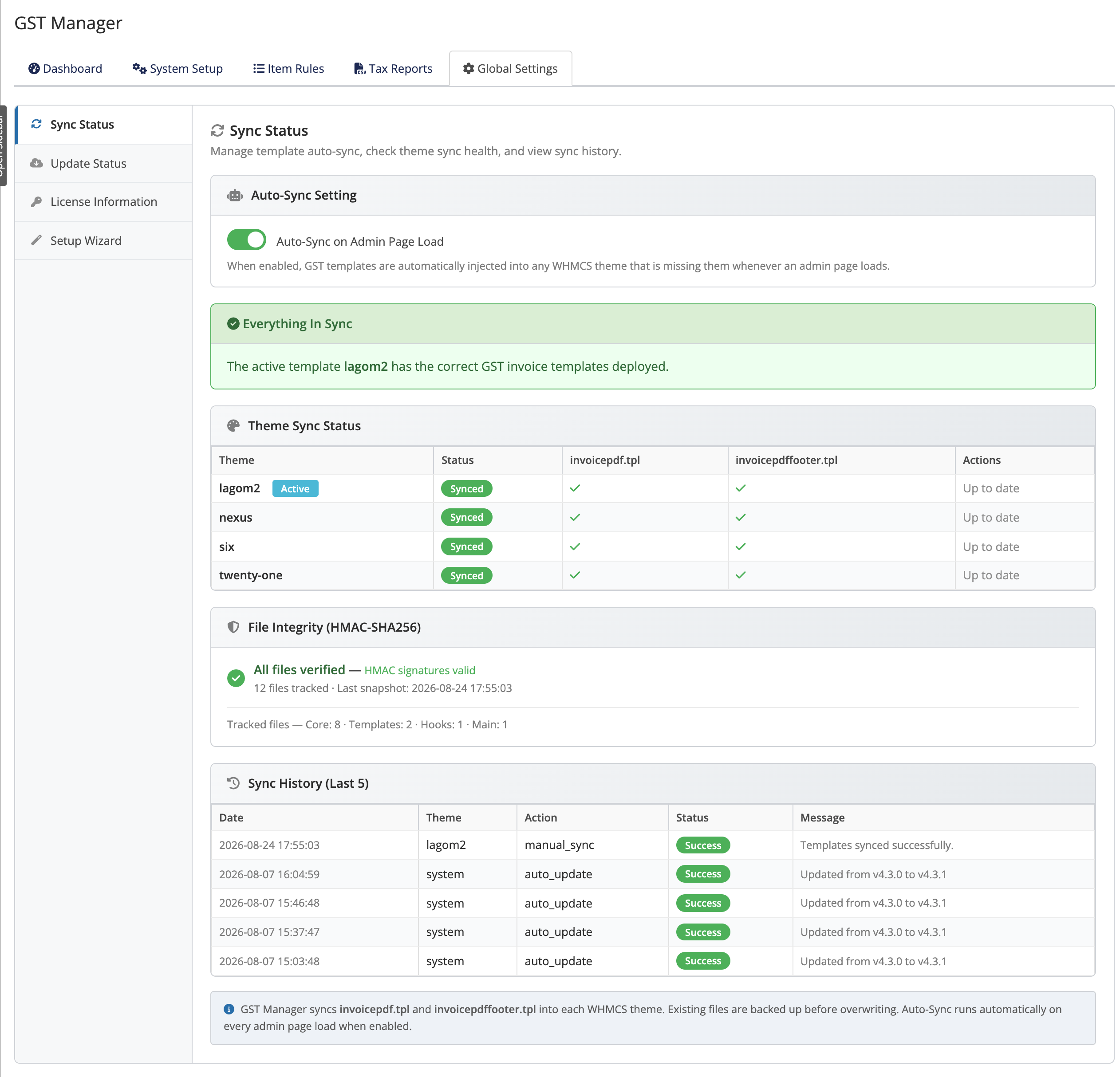 Addons → GST Manager → Global Settings → Sync Status
Tax is wrong on an invoice
- Verify rules: Confirm IGST 18% and CGST 9% + SGST 9% rules exist in WHMCS Tax Rules.
- Validate client state: WHMCS applies CGST/SGST for intra-state clients and IGST for inter-state clients. Check the client profile's State field.
- Audit classification: Verify line-item codes under Addons → GST Manager → Item Rules.
Updates won't apply
When updating under Global Settings → Update Status → Check for Updates → Update Now:
- File permissions: Ensure
modules/addons/gst_manager/is writable by the web server user. - License validity: Confirm license status is Active with valid Support & Updates (for Lifetime licenses).
- Network connectivity: Transient licensing connection drops can be retried immediately.
See the error reference for specific update error strings.
"ionCube Loader required" on every page
If GST Manager displays:
ionCube Loader required. Contact support@relyweb.co
- Root cause: Server lacks the required ionCube Loader extension or runs an outdated version.
- Resolution: Request your host enable ionCube Loader 13.0.2+ for your PHP version, then reload. See Requirements.
Client bank details not showing on invoices
- License verification: Client-area bank display is license-gated; verify active status under Global Settings → License Information.
- Account setup: Confirm bank details exist for the invoice currency under System Setup → Bank Details.
- Operations: Core invoicing and tax calculation continue functioning regardless of license status.
Still stuck?
- Read the exact message on the error reference.
- Browse common questions in the FAQ.
- Contact
support@relyweb.co.