
Appearance
Backup & Restore
GST Manager protects your install during updates with automated safeguards:
- Pre-update snapshot: Takes a full backup of files and module database tables before updating.
- Automated recovery: Restores files and database automatically if an update fails.
- Database archives: Retains downloadable SQL backups after successful updates.
Backup before every update
Before every update, GST Manager creates a complete pre-update snapshot:
- Automatic capture: Runs automatically during Update Now under Addons → GST Manager → Global Settings → Update Status.
- Full scope: Backs up module files and all GST Manager database tables.
- Zero configuration: No manual backup trigger required. See Updating for update details.
Automatic restore on failure
If an update fails partway through, GST Manager reverts changes immediately:
- State preservation: Restores original files and database tables from the pre-update backup.
- Zero downtime: Leaves your installation exactly as it was before the update attempt.
- Safe failure: Failed updates act as a safe no-op with no orphan files.
TIP
Because the backup is taken first, a failed one-click update never leaves you with a half-applied version.
Retained database backups
After a successful update, GST Manager cleans temporary files and saves database archives:
- File cleanup: Removes the pre-update file archive (re-download releases from your client area).
- Database archive: Keeps a snapshot listed under Update Status → Database Backups.
- Download link: Download archives directly via the Download action.
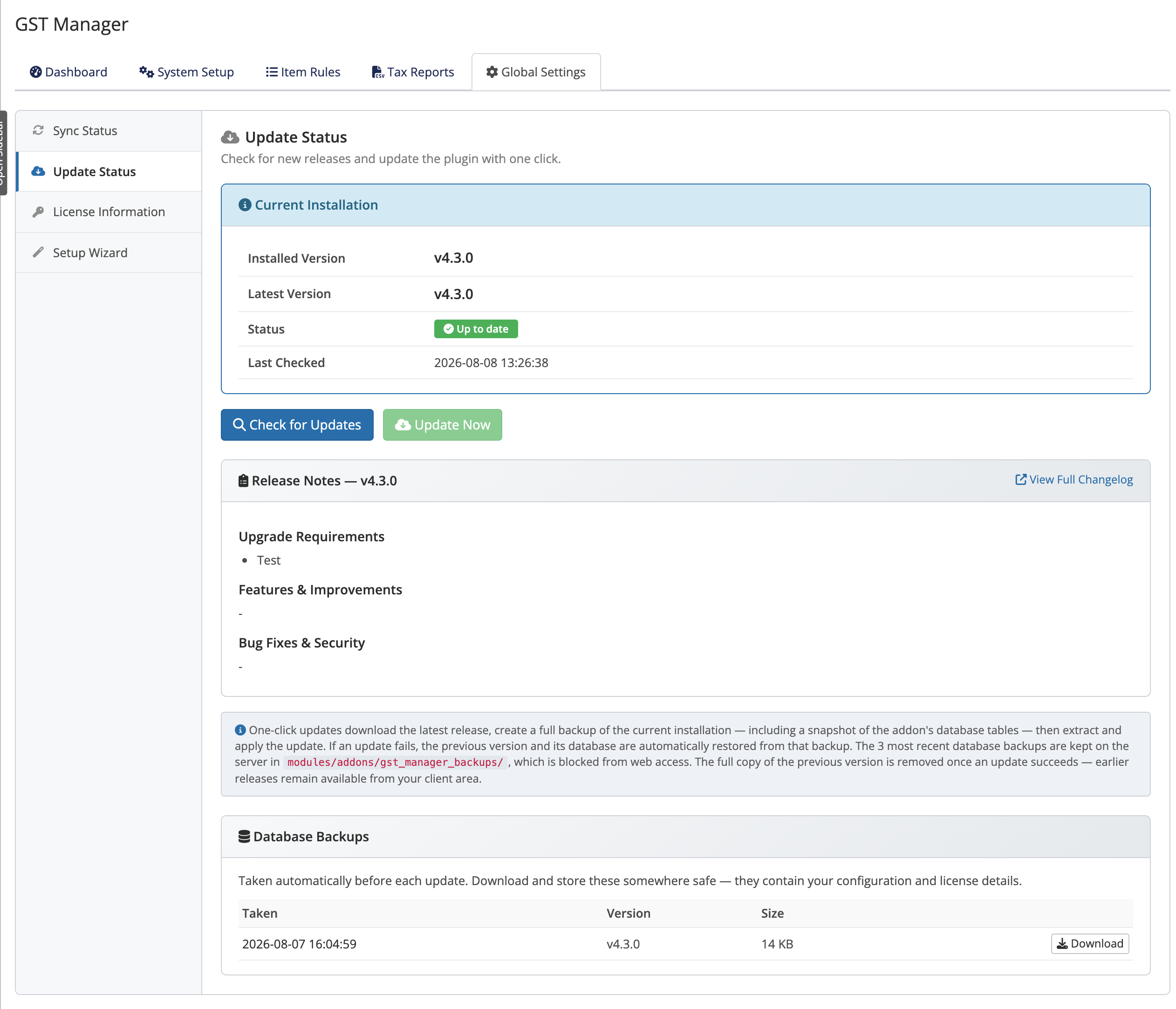 Addons → GST Manager → Global Settings → Update Status → Database Backups
Store these privately
A retained database backup includes your configuration and license details. Download it only over a secure connection and store it privately — never in a publicly reachable location.
Where backups are stored
Backups live in modules/addons/gst_manager_backups/ on your server:
- Apache servers: Access to this directory is blocked automatically via
.htaccess. - nginx servers: Request your host to explicitly deny web access to
modules/addons/gst_manager_backups/.
WARNING
The backups directory holds sensitive data. If you're on nginx, confirm with your host that modules/addons/gst_manager_backups/ is not web-accessible before relying on one-click updates.
Rolling back a successful update
To return to a previous release version manually:
- Download archive: Obtain the prior release ZIP from your client area.
- Deploy files: Extract and overwrite files in
modules/addons/gst_manager/per manual update steps. - Database recovery: If database rollback is needed, contact support for assistance.
INFO
Rolling back is uncommon. If an update caused a problem, check Troubleshooting first — most issues are resolved by a re-sync or a configuration fix rather than a full rollback.
Related pages
- Updating — the one-click and manual update flows
- Troubleshooting — resolving update issues
- Licensing — license details are part of a backup