
Appearance
Item Rules
Map specific tax classification codes to products and service types under Addons → GST Manager → Item Rules:
- GST classification: Assigns exact Services Accounting Codes (SAC) per product.
- Export compliance: Attaches Reserve Bank of India (RBI) Purpose Codes for foreign remittances.
- Automated stamping: Line items inherit mapped codes automatically on invoice generation.
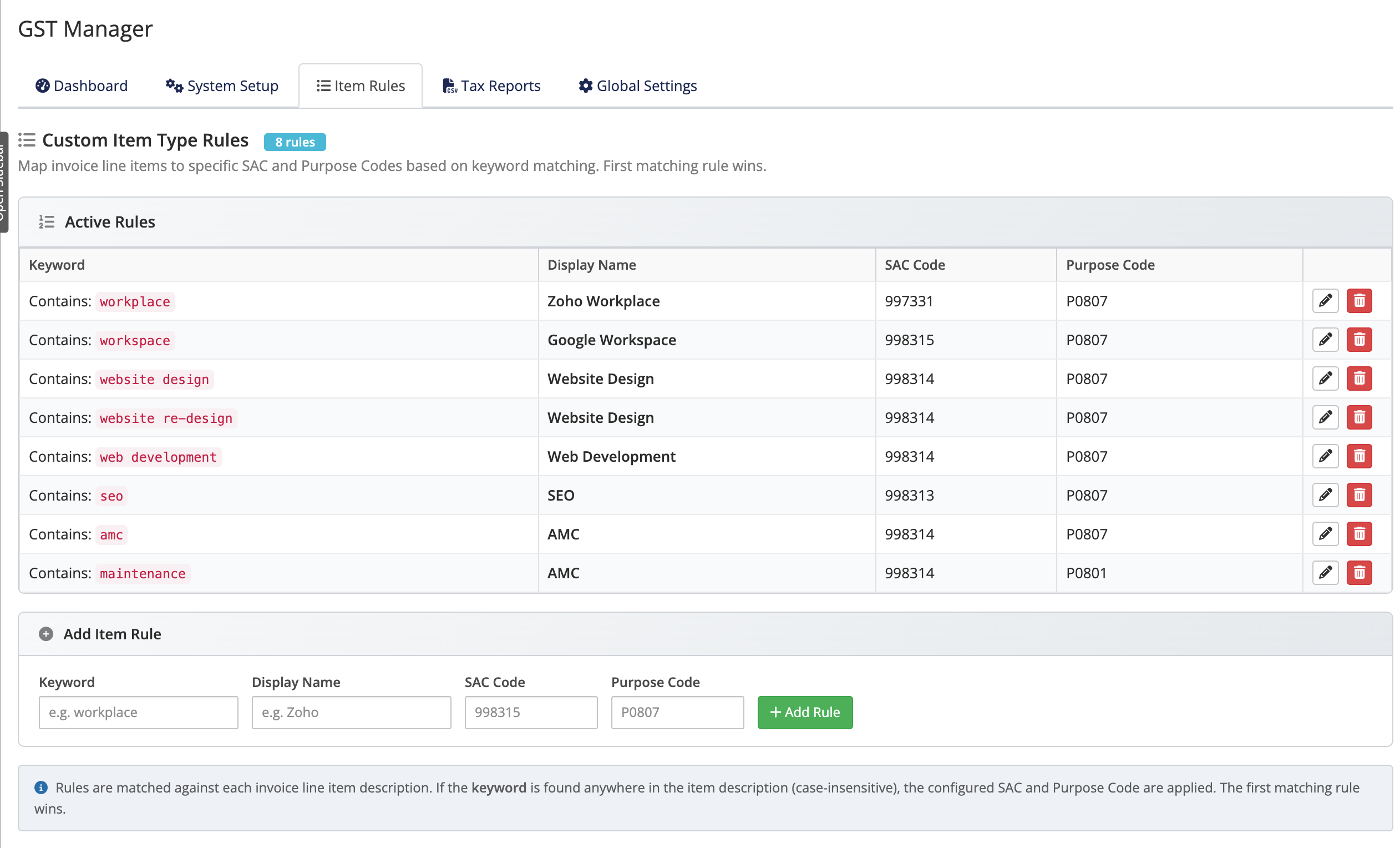 Addons → GST Manager → Item Rules
What these codes are
- SAC (Services Accounting Code): Statutory code classifying services for Indian GST computation.
- Purpose Code (RBI): Central bank code classifying inward foreign currency remittances for export compliance.
Defaults vs rules
GST Manager resolves codes hierarchically:
- System baseline: Default SAC and Purpose codes configured under System Setup → SAC & Purpose Codes (e.g. Hosting, Domains, Product Upgrades, Addons).
- Product overrides: Item Rules override global defaults for specialized products, software licenses, or custom professional services.
Add or edit a rule
- Navigate to Addons → GST Manager → Item Rules.
- Select the target product or service type from the dropdown.
- Enter the specific SAC code and optional RBI Purpose code.
- Click Save Changes to apply the mapping to future invoices.
To revert a product to global category defaults, delete the corresponding item rule.
Exports lean on both codes
For non-Indian clients, the SAC and Purpose codes flow into your export invoices and the Export Invoices CSV. See export compliance and tax reports.
Where to go next
- Configuration — set the default SAC & Purpose codes
- Export compliance — how these codes appear on exports
- Back to the overview