
Appearance
Set up GST correctly
Configure GST tax rules to charge IGST on inter-state sales and CGST + SGST within your registered state:
- Input requirements: 15-character statutory GSTIN and your registered home state.
- Automated rule creation: Sets up standard 18% GST tax rules in WHMCS.
- Geographic tax splitting: Determines tax calculation dynamically based on client location.
Why the client's state matters
GST splits by geography. When your client is in another Indian state, you charge a single IGST (Integrated GST). When your client is in your own state, you charge two halves — CGST (central) plus SGST (state). GST Manager generates both rule sets so WHMCS picks the correct one automatically from each client's state.
1. Enter your GSTIN and registered state
Configure your tax identity through either method:
- Setup Wizard: Enter your 15-character GSTIN and select your state during Step 3 (GSTIN & Tax Rules). Format errors are highlighted in red.
- System Setup: Go to Addons → GST Manager → System Setup → Tax & GST, enter the GSTIN and Tax Type, then save changes.
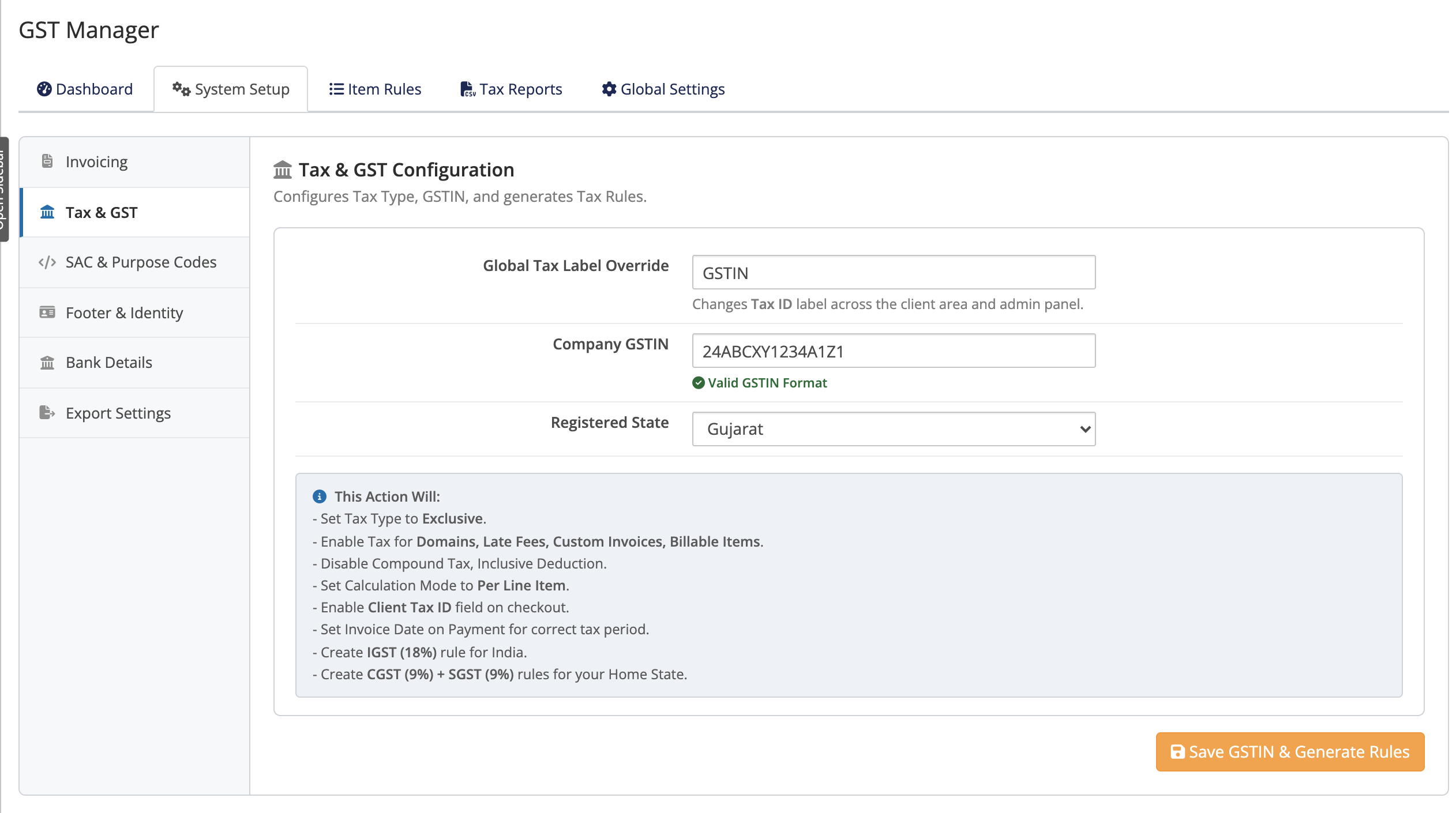 Addons → GST Manager → System Setup → Tax & GST
2. Generate the IGST / CGST / SGST rules
Generate the tax rules directly from the Tax & GST screen:
- IGST 18%: Configured at country level (India) for inter-state clients.
- CGST 9% + SGST 9%: Configured specifically for clients in your registered state.
One-Click System Setup
In a hurry? System Setup offers a One-Click System Setup that configures invoicing, your GSTIN and the tax rules together in a single step — handy if you skipped parts of the wizard.
3. Verify the WHMCS tax configuration
Validate tax rule application with test invoices:
- Intra-state check: Open an invoice for a client in your registered state. Confirm CGST 9% and SGST 9% line items display.
- Inter-state check: Open an invoice for a client in another Indian state. Confirm a single IGST 18% line item displays.
- Troubleshoot zero-tax: If tax is missing, verify the client profile has a valid State and rerun WHMCS Prerequisites from the Setup Wizard.
Client state is the switch
If a client's state is blank or wrong, WHMCS can't tell inter-state from intra-state and may apply the wrong tax (or none). The GST Compliance Health widget on your dashboard flags zero-tax domestic invoices so you can catch these quickly.
Related pages
- Setup wizard — the guided 7-step first run
- Settings reference — every System Setup field explained
- GST Manager overview