
Appearance
Configuration
Configure GST Manager settings after activation. For the field-by-field reference, see the Settings reference.
Vocabulary
GSTIN is your 15-character GST registration number. IGST / CGST / SGST are the inter-state / central / state components of GST — inter-state sales attract IGST; sales inside your own registered state split into CGST + SGST. SAC codes classify services for tax; Purpose Codes (RBI) classify export payments; FEMA governs export remittances.
1. Run the Setup Wizard
On a fresh, licensed install, opening Addons → GST Manager launches a guided 7-step Setup Wizard:
- License verification: Validates active module license status.
- WHMCS prerequisites: Auto-configures required tax and currency settings.
- Tax rules: Captures GSTIN, registered state, and generates GST rules.
- Identity & codes: Records company identity, SAC codes, and RBI Purpose codes.
- Template deployment: Syncs GST invoice templates to active themes.
Only the GSTIN & Tax Rules step is mandatory — every other step provides a Skip for now option. See the Setup Wizard.
Upgrading?
The wizard only appears on a fresh install. Upgrading does not trigger it — your existing settings are kept.
2. Where each setting lives (System Setup)
Access settings directly under Addons → GST Manager → System Setup:
| Section | What you set here |
|---|---|
| Invoicing | Proforma Invoicing and Sequential Numbering (e.g. INV-20251001) |
| Tax & GST | Tax Type, your GSTIN, and generation of the GST tax rules |
| SAC & Purpose Codes | Default SAC + RBI Purpose code per service type |
| Footer & Identity | Phone, email, PAN and CIN/LLPIN printed in the invoice footer |
| Bank Details | Remittance/bank details, configurable per invoice currency |
| Export Settings | FEMA declarations, export numbering and export formatting |
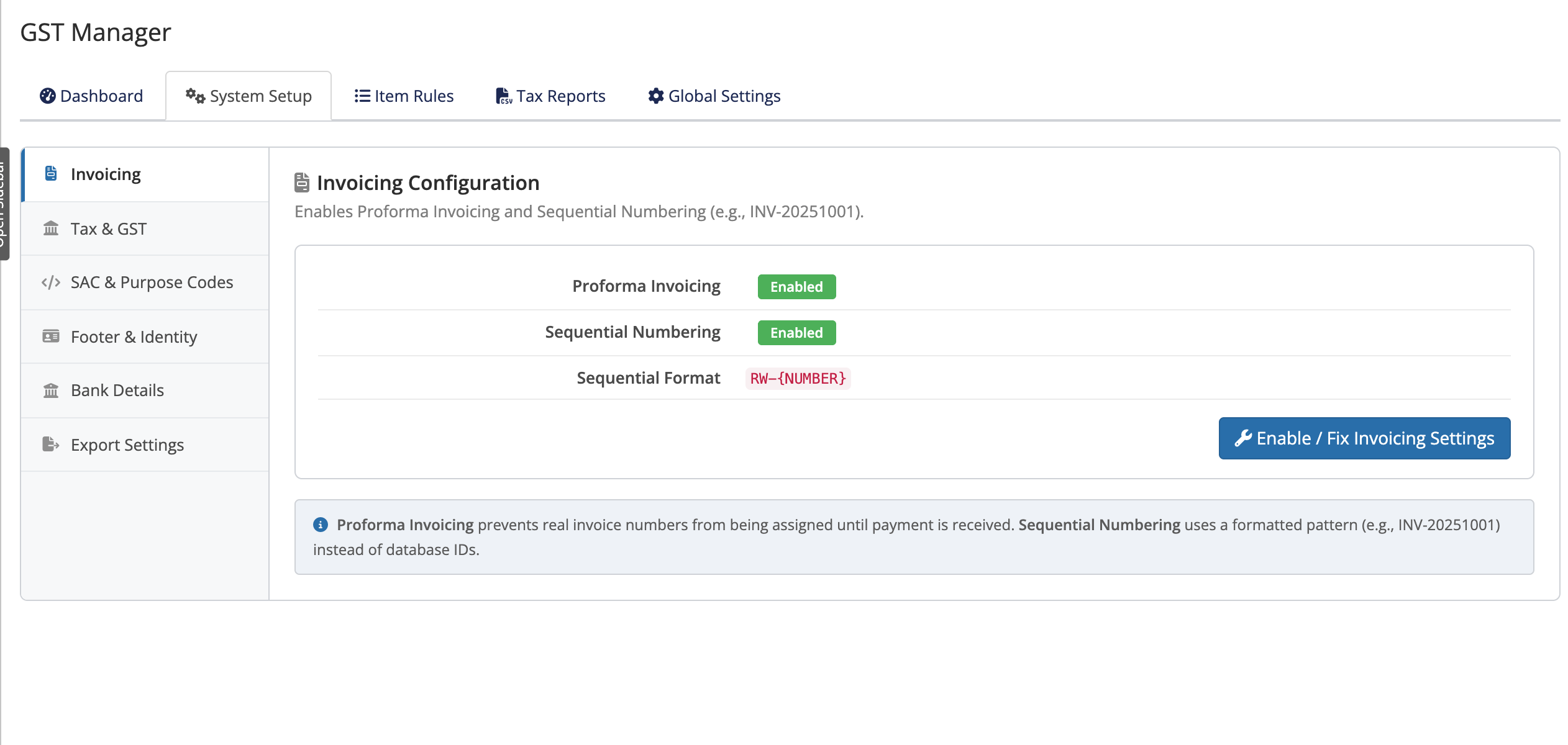 Addons → GST Manager → System Setup
Every field and default is documented in the Settings reference.
3. Set your GSTIN and registered state (mandatory)
Navigate to System Setup → Tax & GST → enter your 15-character GSTIN → select your registered state → save.
GST Manager generates the required tax rules automatically:
| Rule | Applies to |
|---|---|
| IGST 18% | Inter-state supplies (country = India) |
| CGST 9% + SGST 9% | Supplies within your own registered state |
An invalid GSTIN is rejected — double-check the 15 characters before saving.
One-Click System Setup
One-Click System Setup configures invoicing, the tax rules and your GSTIN in a single step. Fine-tune anything afterwards.
4. Set Company Identity
Sample placeholders print on real invoices
GST Manager ships sample placeholders for identity, bank and export details (for example +91-1234567890 and PAN ABCDE1234F). If you skip Footer & Identity, those placeholders print on real customer invoices. Set your own phone, email, PAN and CIN/LLPIN under System Setup → Footer & Identity before you go live.
5. Fine-tune per-item codes
Defaults under SAC & Purpose Codes cover standard service types (Hosting, Upgrades, Domains, Addons). For product-specific codes, configure mappings under Item Rules.
6. Verify
- Raise test invoices: Verify domestic CGST/SGST, inter-state IGST, and footer details.
- Check SAC/Purpose codes: Confirm codes display accurately on line items.
- Export tax reports: Download filing CSVs from Tax Reports.
Where to go next
- Settings reference — every field and default
- Item Rules — per-item SAC & Purpose codes
- Tax Reports — GSTR-1, export and legacy CSVs
- Back to the overview