
Appearance
Configuration
First-run configuration in order: connect an engine, switch on the capabilities you want, set cost caps and brand voice. Everything lives under the RelyAI sidebar group; every setting is reversible.
Prerequisites: RelyAI installed with an Active license (see Installation).
For a field-by-field reference of every tab, see the Settings reference.
1. Connect an engine
AI features require at least one connected engine (provider + model):
- Go to RelyAI → Settings → Engines & Keys.
- Add your OpenAI, Anthropic, or Ollama configuration.
- Click Test Connection, then click Set as Default.
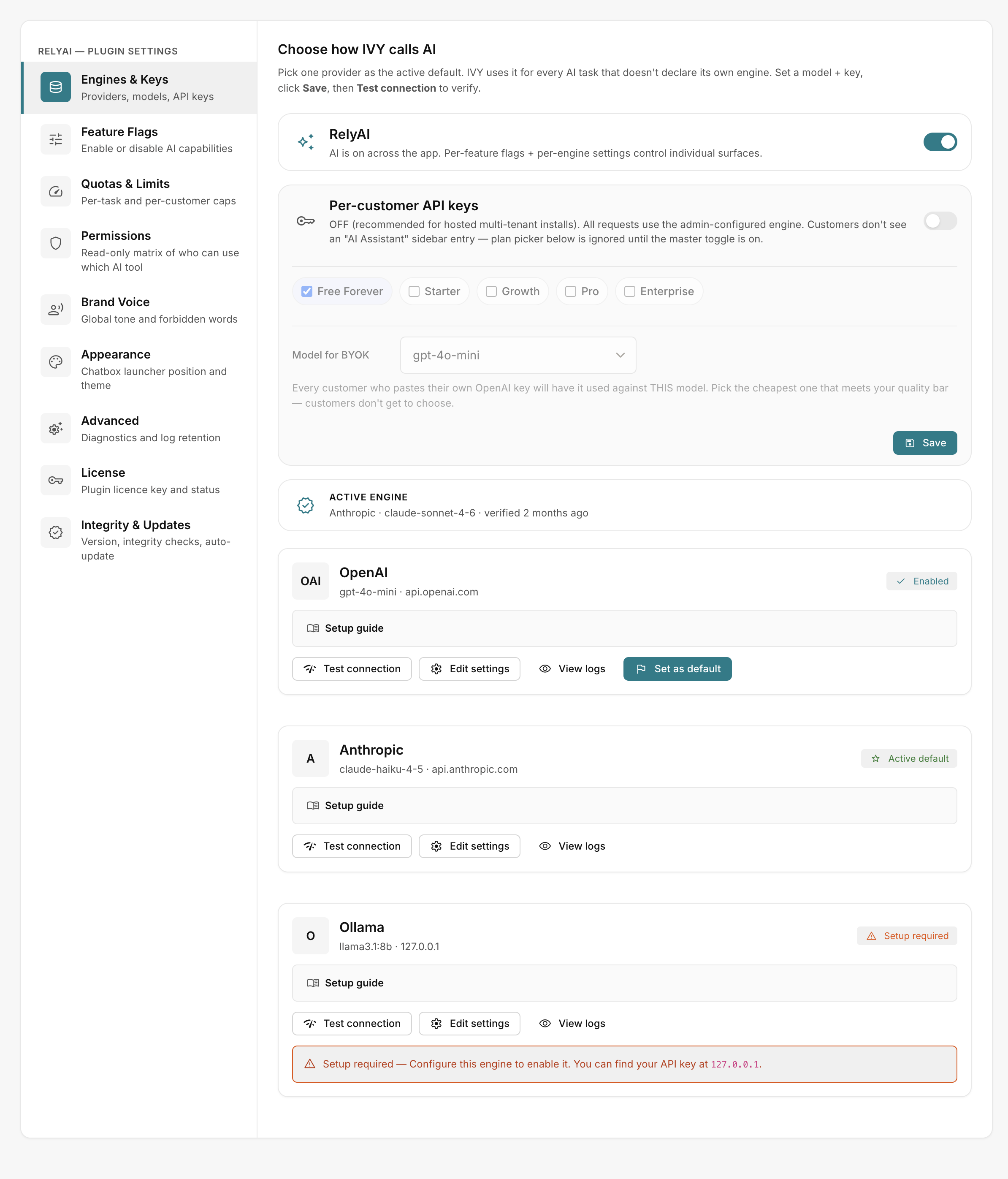 RelyAI → Settings → Engines & Keys
Detailed setup guide: Connect an engine.
2. Turn on the features you want
Navigate to RelyAI → Settings → Feature Flags to toggle individual tools:
- Enabled by default (Read-only): Support chatbox, universal rewrite, subject A/B generator, and observability dashboards.
- Disabled by default (Action/Cost): Agent chat, campaign/template/automation tools, and the four coaches.
Enable only required capabilities. See Feature flags and permissions.
3. Set quotas, limits and brand voice
| Tab | Sets |
|---|---|
| Quotas & Limits | Per-task rate caps and an optional per-customer daily cap. See Quotas, limits and credits. |
| Brand Voice | Global tone, forbidden words and voice sample. See Brand voice and appearance. |
| Appearance | Chatbox launcher position, theme and glyph. |
Where AI shows up
| Surface | Where |
|---|---|
| Chatbox bubble | Bottom-right of the admin |
| Sparkle (✦) rewrite popover | On selected text |
| Suggest button | Beside the campaign subject field |
| Coach chips | On the relevant pages |
| AI Assist pills | Where the agent can act |
| Admin observability | Usage Dashboard, Conversations, Audit Viewer, Feedback, Self-Improve |