
Appearance
Settings reference
Everything you configure lives under Addons → Relyagent → Settings, split into five sections: General, MCP Settings, Sync, Update Status and License Information. This is a complete reference to each setting and its default.
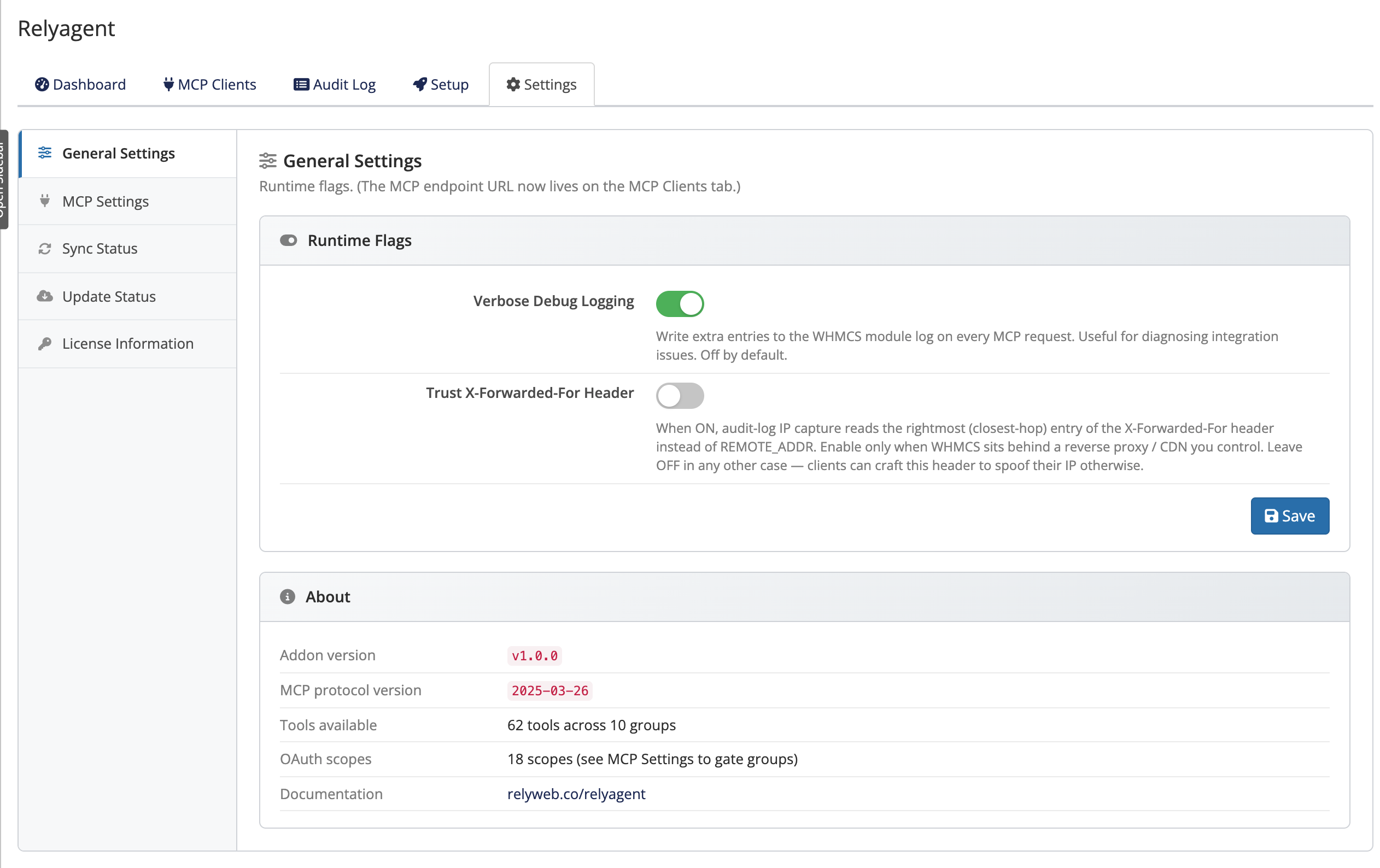 Addons → Relyagent → Settings
What is MCP?
The Model Context Protocol (MCP) is an open standard that lets AI assistants call external tools. Relyagent makes your WHMCS one of those tool providers — safely, on your own server. The MCP Settings section below controls which tools are exposed and how hard they can be called.
General
| Setting | Default | What it does |
|---|---|---|
| Verbose Debug Logging | Off | Writes extra entries to the WHMCS module log on every MCP request. Turn it on only while diagnosing an integration problem, then turn it back off — it is noisy in day-to-day use. |
| Trust X-Forwarded-For Header | Off | Changes how the client IP is captured for the audit log. When On, Relyagent reads the closest-hop entry of the X-Forwarded-For header instead of the direct connection IP. |
Reverse proxies only
Enable Trust X-Forwarded-For Header only when WHMCS sits behind a reverse proxy or CDN you control. If you turn it on without a trusted proxy in front, a client could spoof the header and your audit log would record the wrong IP.
MCP Settings
This section decides which tools AI clients can see and how often they can call them. See MCP tools for the full tool list and Connections & OAuth for how these caps combine with each connection's tool selection.
Tool groups
| Setting | Default | What it does |
|---|---|---|
| Tool group toggles (Clients, Tickets, Invoices, Services, Domains, Admin, Affiliates, Email, Quotes, Orders) | On | Enables or disables each of the 10 groups install-wide. A disabled group's tools never list and never run, even if a connection has them ticked. |
Dangerous Operations
| Setting | Default | What it does |
|---|---|---|
| Dangerous Operations | Off | Master gate for state-changing tools. While Off, those tools are visible but refuse to run. |
When On, the following state-changing tools become runnable (and only if the tool is also ticked on the connection):
update_clientdelete_client_contactclose_clientdelete_clientcreate_invoiceadd_creditsuspend_serviceunsuspend_servicechange_packagedelete_ticketaccept_quotedelete_quote
Leave this off unless you need it
These tools change live billing and account state. Enable Dangerous Operations deliberately, grant the specific tools to only the connections that need them, and keep an eye on the audit log.
Rate limits
| Setting | Default | Notes |
|---|---|---|
| Calls / minute | 60 | Per token. Hard cap of 10,000 — you cannot set a value higher than this. |
| Calls / day | 5000 | Per token. Hard cap of 1,000,000 — you cannot set a value higher than this. |
When a token exceeds either limit, further calls are refused until the window resets, and the call is recorded as Rate Limited in the audit log.
Regenerate RSA Keypair
| Control | What it does |
|---|---|
| Regenerate Now | Replaces the signing keypair used for OAuth access tokens. Use it if you suspect the key is compromised. Regenerating revokes all existing access tokens, so every connected client must reconnect — plan for a brief interruption. |
Sync
Relyagent verifies its own deployed files against an HMAC-SHA256 signed baseline so you can trust the deployment. See File integrity for the full story.
| Setting | Default | What it does |
|---|---|---|
| Auto-Sync | — | Re-syncs deployed files automatically on admin page load when a mismatch is detected. |
The File Integrity (HMAC-SHA256) panel monitors file modifications against the signed baseline:
- Everything In Sync: confirms deployed files match ("All deployed files match the HMAC-signed baseline.").
- Sync Required: indicates file drift or missing components.
- Manual Sync: re-validates files on demand ("Sync completed successfully.").
Update Status
This section shows your installed version, checks for new releases, and keeps your database backups. Relyagent also checks for updates automatically once a day. For the full workflow, see Updating and Backup & restore.
License Information
Enter and manage your Relyagent license key here. The panel shows your license type and, for a Lifetime key, whether your Support & Updates entitlement is active. See Licensing.
Next steps
Once your settings are how you want them, create a connection under Addons → Relyagent → MCP Clients — see Connections & OAuth.