
Appearance
Installation
Get Relyagent live: upload, activate, license, review MCP Settings, and create your first connection.
Prerequisites: a server that meets the Requirements, a Full Administrator account, and your Relyagent license key.
1. Upload the module
Copy modules/addons/relyagent/ into your WHMCS install, alongside your other addon modules.
2. Activate the addon
Setup → Addon Modules → Relyagent → Activate.
 Setup → Addon Modules → Relyagent → Activate
Activation creates the module's tables, deploys the hook loader, generates the per-install OAuth signing key, and records the file-integrity baseline. On success:
Relyagent activated successfully. Configure the module in Addons → Relyagent.
WHMCS restricts addon access by administrator role:
- Role assignment: grant access to Full Administrator (and designated management roles) during activation.
- Permission errors: missing permissions trigger Access Denied or blank screens.
- Role management: adjust settings under Configuration → System Settings → Administrator Roles (see Administrator access requirements).
3. Enter your license key
Addons → Relyagent → Settings → License Information → enter your key → activate. The MCP server is license-gated, so this is required before any AI client can connect. See Licensing.
On first opening Relyagent after activation, only the License Information form is shown — the Dashboard, MCP Clients, Audit Log and other tabs appear once a valid key is Active.
4. Review MCP Settings
Addons → Relyagent → Settings → MCP Settings. Confirm the caps that sit over every connection:
| Control | Default | Effect |
|---|---|---|
| Tool-group toggles (10 groups) | On | A disabled group's tools never list or run |
| Dangerous Operations | Off | State-changing tools stay visible but refuse to run until enabled |
| Calls / minute | 60 | Per token |
| Calls / day | 5,000 | Per token |
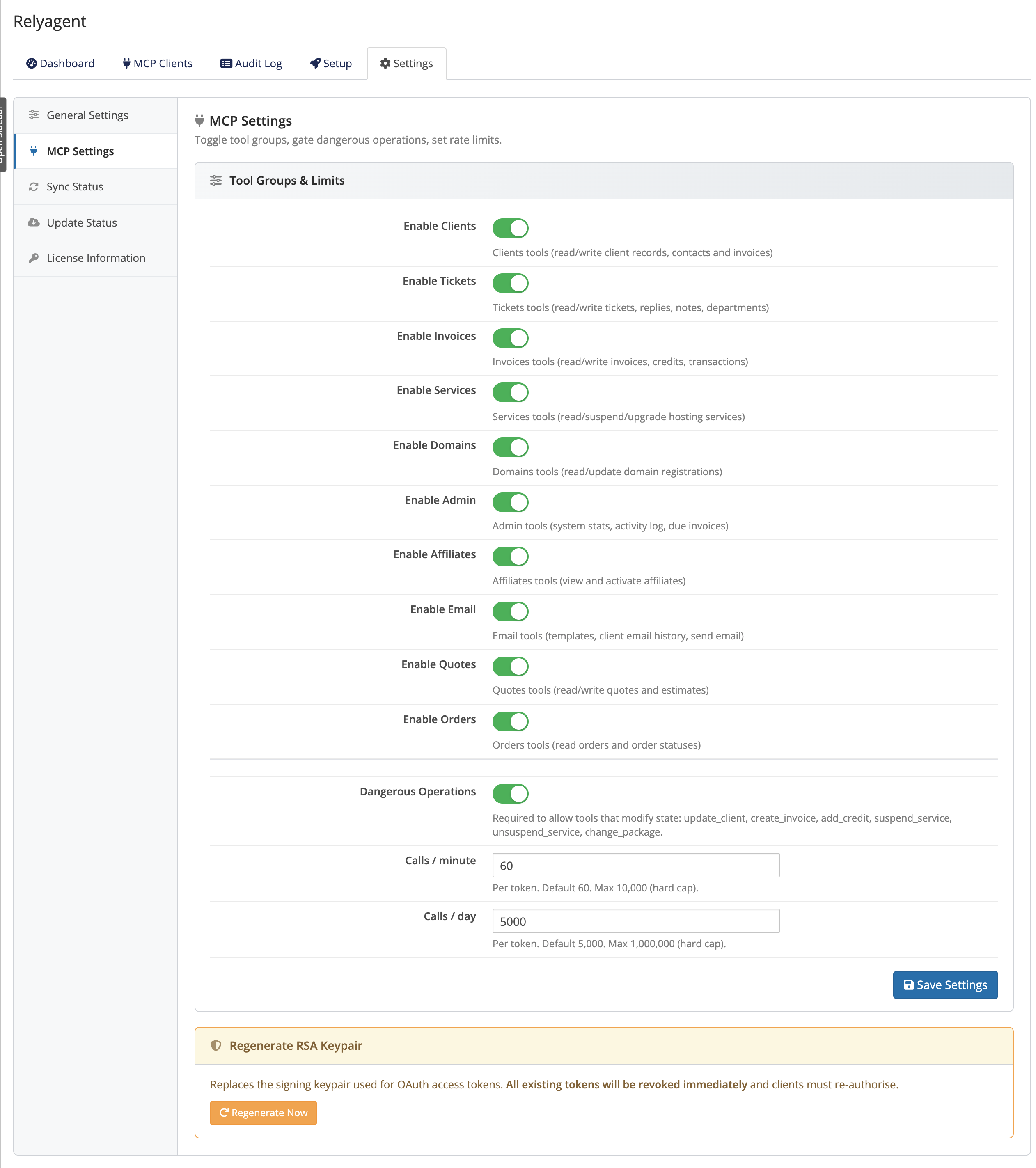 Addons → Relyagent → Settings → MCP Settings
Start read-only
Leave Dangerous Operations off until a client actually needs to change billing or account state. When you do enable it, grant the specific dangerous tools only to the connections that need them. See Configuration.
5. Create your first connection
- Navigate to clients: open Addons → Relyagent → MCP Clients → New connection.
- Configure profile: provide a name (e.g. "Claude — Production") and select allowed tools.
- Save and copy secrets: save to generate the Client ID and Client Secret (copy the secret immediately; it is displayed only once).
- Connect client: copy the Endpoint URL, Client ID, and Secret into your AI client settings.
The endpoint AI clients connect to is:
https://<your-whmcs>/modules/addons/relyagent/public/mcp/endpoint.php6. Verify
Create a connection, connect one AI client (see the guides), and ask it to list its WHMCS tools — it should show only the tools you ticked.
Next steps
- Configuration — create and manage connections in depth
- Licensing — license types and renewals
- MCP tools — the 10 tool groups and the dangerous-op gate