
Appearance
Configuration
A connection links one AI client to your WHMCS instance. Each connection is provisioned by an administrator, restricted to explicitly selected tools, and secured using dedicated OAuth credentials.
Prerequisites: an active license and the tool groups you need enabled under Addons → Relyagent → Settings → MCP Settings (see global caps).
What is MCP?
The Model Context Protocol (MCP) is an open standard that lets AI assistants call external tools. Relyagent makes your WHMCS one of those tool providers — so a client like Claude can list and call only the WHMCS tools you allow.
Create a connection
Addons → Relyagent → MCP Clients. Near the top is the persistent Endpoint URL with a Copy button — the same for every connection:
https://<your-whmcs>/modules/addons/relyagent/public/mcp/endpoint.php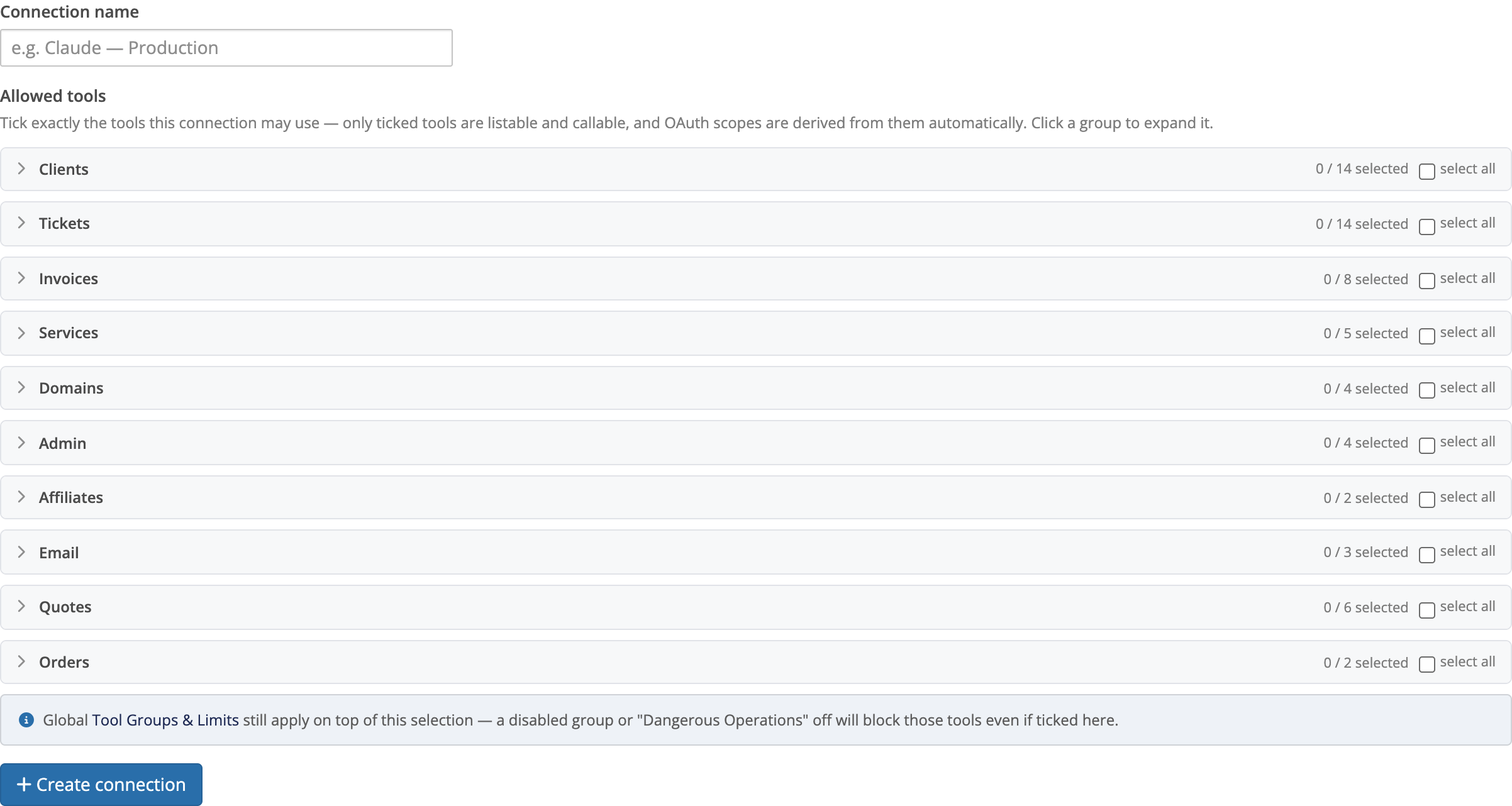 Addons → Relyagent → MCP Clients
- Create connection: click New connection and enter a descriptive name (e.g. "Claude — Production").
- Select tools: tick the specific Allowed tools the client can invoke. Scopes derive automatically (
<group>:reador<group>:write). - Save settings: submit the form to generate the OAuth credentials.
State-changing tools show a red dangerous badge; a tool whose group is off shows "group off — won't run".
Start read-only
Tick only the read tools you need for the first connection. Edit it later — see the secure edit model.
Credentials Relyagent issues
| Value | What it is |
|---|---|
| Client ID | Identifies the connection |
| Client Secret | Shown once, right after creation — copy and store it now |
| Endpoint URL | The shared MCP address above |
Hand these three values to the AI client. There is no open self-registration: a client can only connect with a Client ID and Client Secret you issue.
The secret is shown only once
If you lose the secret you can't recover it — use Regenerate secret to issue a new one (which forces the client to reconnect). Never paste a secret into a page you don't trust.
Connect the AI client
In the AI client's custom-connector settings, paste the Endpoint URL, Client ID and Client Secret, then connect:
- Discovery: the client discovers Relyagent's OAuth endpoints automatically.
- Authentication: sign in via your native WHMCS admin login (standard 2FA and IP rules apply).
- Consent: review and approve the consent screen listing allowed tools.
- Active session: the client accesses only ticked tools; all other calls are rejected.
 Addons → Relyagent → MCP Clients (consent shown after admin login)
Per-client steps: Claude Desktop, Claude.ai, Claude Code, Cursor, ChatGPT. The Setup tab has the same steps with your Endpoint URL pre-filled.
The secure edit model
Use Edit to change a connection's ticked tools. Changes apply asymmetrically by design, so tightening access is instant:
- Removing a tool: takes effect immediately; the client loses list and execution permissions.
- Adding a tool: requires client reconnection and re-consent; existing access tokens are revoked until re-authorized.
Regenerate a secret
Click Regenerate secret when rotating credentials or responding to potential exposure:
- Immediate invalidation: the previous secret stops working immediately.
- Client update: copy the new secret into your AI client and reconnect.
Revoke a connection
Use Revoke to shut a connection down entirely — it can no longer connect or call any tool. Revoke when a connection is unneeded or its credentials may be compromised.
Global MCP Settings caps
Per-connection tool selections sit underneath the global caps in Addons → Relyagent → Settings → MCP Settings. Even a ticked tool won't run if a cap blocks it:
| Cap | Effect |
|---|---|
| Tool-group toggles (10 groups) | A disabled group's tools never list or run, whatever a connection ticks |
| Dangerous Operations (off by default) | State-changing tools only run when this is on and the tool is ticked |
| Rate limits | Calls / minute (default 60) and Calls / day (default 5000), per token |
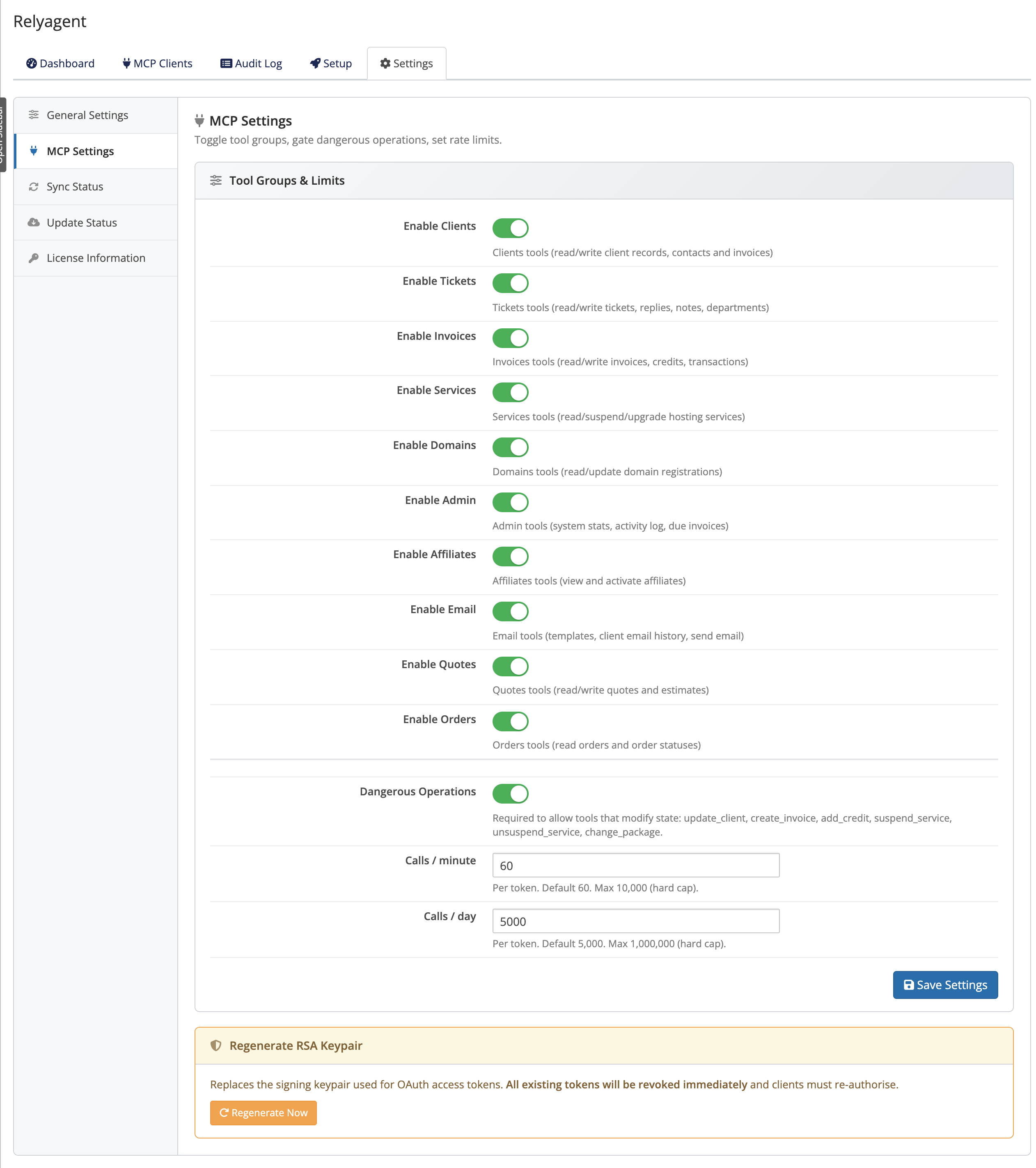 Addons → Relyagent → Settings → MCP Settings
Where to go next
- MCP tools — the 10 groups and the dangerous-op gate
- Connections & OAuth — how the sign-in flow works
- Settings reference — every setting and its default
- Per-client guides: Claude Desktop · Claude.ai · Claude Code · Cursor · ChatGPT
- Back to the overview