
Appearance
Backup and restore
GeoSync Pro automatically backs up files and database tables before each update. This page details backup storage locations, automatic failure recovery, database archives, and rollback steps.
Backup before every update
Before starting any update, GeoSync Pro takes a full backup consisting of:
- Files: Complete snapshot of the
modules/addons/geosync_pro/directory. - Database: Full snapshot of GeoSync Pro's module tables.
This process runs automatically when you click Update Now under Addons → GeoSync Pro → Settings → Update Status.
Automatic restore on failure
If an update encounters an error, GeoSync Pro triggers an automatic restore:
- Restores both module files and database tables from the pre-update backup.
- Returns your installation to its prior working state without manual intervention.
- Ensures failed updates are safe, non-destructive no-ops.
TIP
Because the backup is taken first, a failed one-click update never leaves you with a half-applied version.
Retained database backups
Following a successful update:
- File backup: Cleaned up automatically (older releases remain downloadable from your client area).
- Database backup: Retained and listed under Update Status → Database Backups with a Download link.
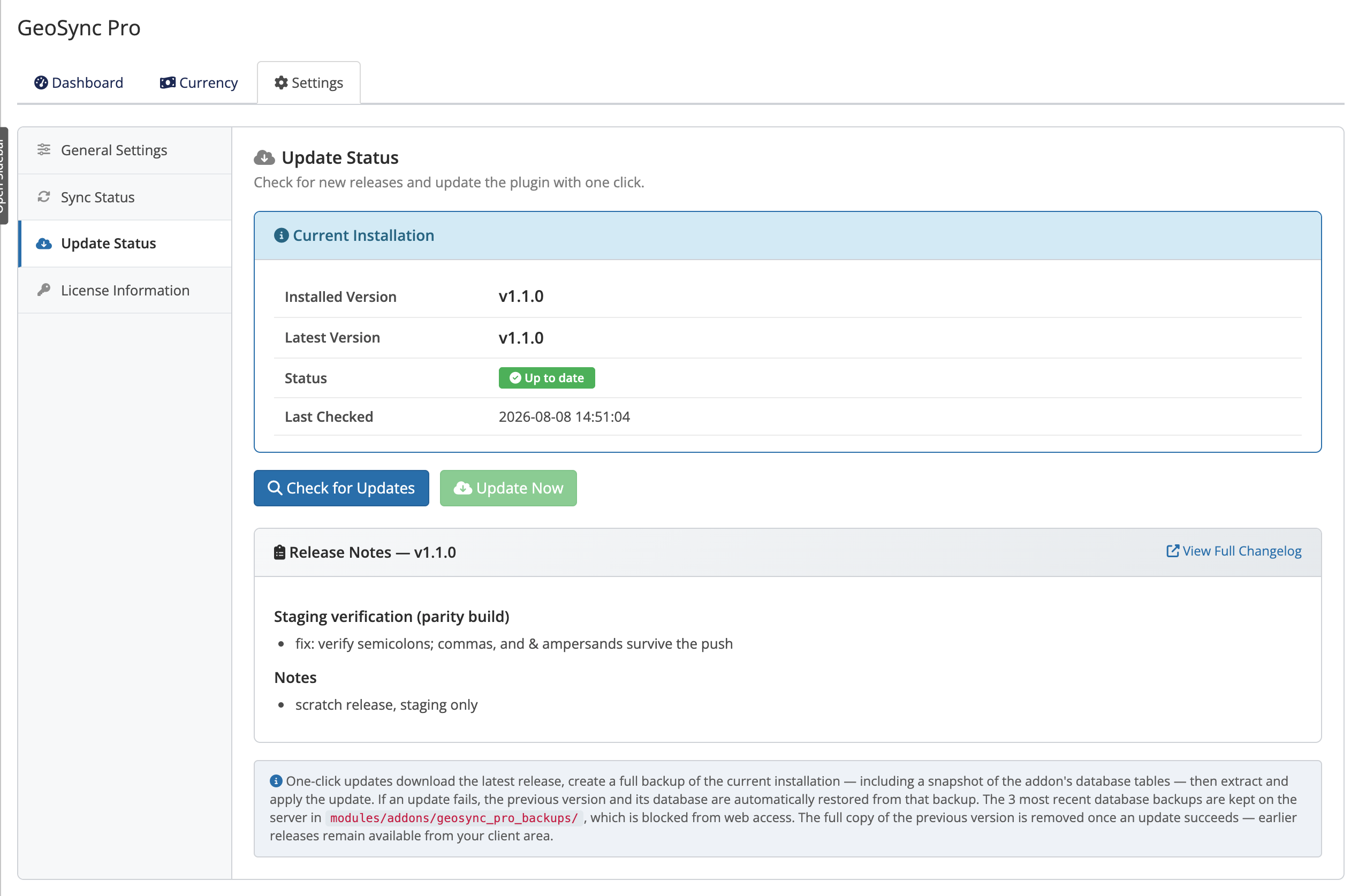 Addons → GeoSync Pro → Settings → Update Status → Database Backups
Store these privately
A retained database backup includes your configuration and license details. Download it only over a secure connection and store it privately — never in a publicly reachable location.
Where backups are stored
Backups live in modules/addons/geosync_pro_backups/ on your server.
- On Apache, web access to this directory is blocked automatically.
- On nginx, there's no per-directory rule, so ask your host to deny web access to
modules/addons/geosync_pro_backups/.
WARNING
The backups directory holds sensitive data. If you're on nginx, confirm with your host that modules/addons/geosync_pro_backups/ is not web-accessible before relying on one-click updates.
Rolling back a successful update
There is no one-click rollback of a successful update. If you need to return to a previous version, use the manual path:
- Download the previous release archive from your client area.
- Overwrite
modules/addons/geosync_pro/following manual update steps. - Contact support if database table restoration is required.
INFO
Rolling back is uncommon. If an update caused a problem, check Troubleshooting first — most issues are resolved by a re-sync or a configuration fix rather than a full rollback.
Related pages
- Updating — the one-click and manual update flows
- Troubleshooting — resolving update issues
- Licensing — license details are part of a backup