
Appearance
Configuration
Enable currency localisation, pick a fallback currency, and map the countries you sell to. Every control lives under Addons → GeoSync Pro → Currency.
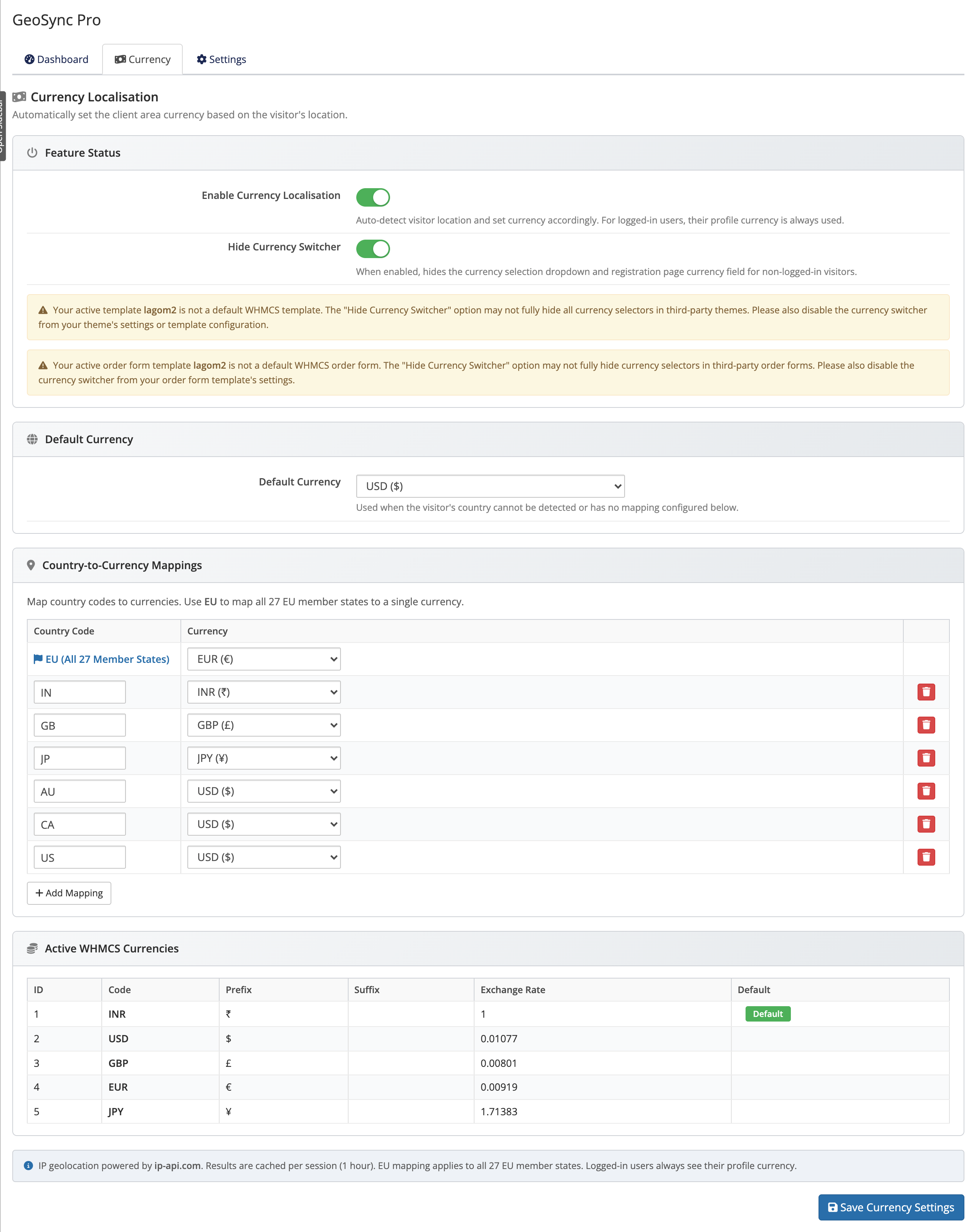 Addons → GeoSync Pro → Currency
Who is affected
Only guest (logged-out) visitors on a public IP are localised. Logged-in users always keep their own profile currency. Private or localhost IPs (like 127.0.0.1 or 192.168.x.x) can't be geolocated, so test in a logged-out or incognito window.
1. Enable Currency Localisation
Addons → GeoSync Pro → Currency → turn on Enable Currency Localisation. This master switch auto-detects each guest's country and sets the client-area currency to match. Off, WHMCS behaves normally.
Requires an active license
Currency localisation only runs while your license is active. If a license lapses the feature pauses until it's active again — see Licensing.
2. Set the Default Currency
Choose a Default Currency — the fallback used whenever a visitor's country can't be detected or has no mapping. Pick the currency that fits the bulk of your traffic (often your primary storefront currency).
3. Add Country-to-Currency Mappings
Click Add Mapping, fill in both columns, and repeat for every country you target. Use the remove control to delete a row.
| Column | What to enter |
|---|---|
| Country Code | An ISO 3166-1 alpha-2 code, e.g. IN (India), GB (United Kingdom), JP (Japan) |
| Currency | The WHMCS currency those visitors should see |
The single EU rule
Map all 27 EU member states at once by adding a single row with country code EU:
- Broad coverage: Assigns a single currency (such as EUR) across all EU countries.
- Specific overrides: Add distinct country rows (e.g.
SEfor Sweden) alongsideEU. Specific country rules take precedence over the regional EU mapping.
Currencies must exist in WHMCS
Mapped currencies must be active under Setup → Payments → Currencies. Cross-check against the Active WHMCS currencies reference table before saving mappings.
4. (Optional) Hide the Currency Switcher
Turn on Hide Currency Switcher to stop guests overriding the currency you've localised. It hides the currency dropdown and the registration-page currency field for logged-out visitors — logged-in users are unaffected.
Third-party themes and order forms
The built-in hide switcher supports standard WHMCS templates (Six, Twenty-One, Nexus). Third-party themes or custom order forms (like Lagom) may require toggling currency switchers within their own theme settings.
Registration-page auto-switch
On the registration form, currency updates automatically the moment a visitor changes their country selection — so prices match the country they say they're in, without a reload.
Save and verify
- Click Save Changes (confirms with "Settings saved successfully.").
- Open your client area in an incognito window from a public IP.
- Verify prices display in your mapped currency, or the Default Currency if unmapped.
Where to go next
- Currency localisation — how detection and fallback work
- Settings reference — every field on the Currency and Settings tabs
- Installation — if you haven't activated and licensed yet
- Back to the GeoSync Pro overview