
Appearance
Configure webhooks
Configure Razorpay webhooks to synchronize payment captures and subscription renewals with AcelleMail. Every webhook payload is HMAC-SHA256 signature-verified using your shared Webhook Secret.
- Prerequisites: Active license saved in Settings; server reachable via public HTTPS.
Add the endpoint
- Navigate to Razorpay Dashboard → Settings → Webhooks and click Add New Webhook.
- Enter your webhook endpoint (replace
YOUR_DOMAINwith your actual domain):https://YOUR_DOMAIN/cashier/razorpay/webhooks - Select the required webhook events:
| Event | Why it matters |
|---|---|
payment.captured | Confirms a one-time payment succeeded (safety net if the customer never returns from checkout) |
subscription.charged | Confirms a recurring cycle was billed |
payment.failed | Records a failed charge |
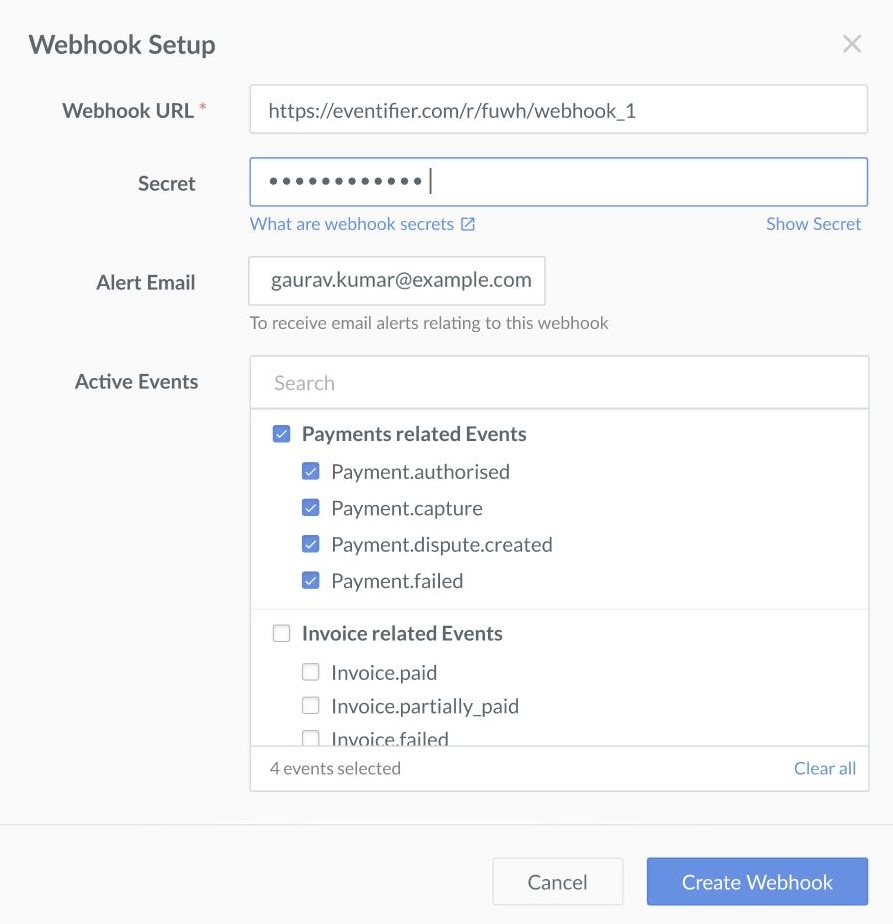 Razorpay Dashboard → Webhooks
Set the Webhook Secret in both places
The secret string must match exactly across both platforms:
- Specify a secure Secret in your Razorpay dashboard webhook configuration.
- Navigate to Admin → Plugins → Razorpay → Settings and paste the matching string into Webhook Secret.
- Click Save Settings.
Mismatched secrets cause signature validation failures and result in rejected event payloads.
The URL is shown for you
Plugin Settings displays the exact webhook URL inline (https://YOUR_DOMAIN/cashier/razorpay/webhooks) so you can copy it into the dashboard.
Required for recurring subscriptions
Recurring plans depend on subscription.charged webhooks to record renewal cycles automatically. Without this event, renewals are not registered in AcelleMail.
Related pages
- Get your API keys — Key ID and Key Secret
- Settings reference — where the Webhook Secret lives
- Set up subscriptions — map plans for recurring billing
- Security — how events are verified
- Troubleshooting — webhook not working