
Appearance
Configuration
Configure all plugin settings under Admin → Plugins → Razorpay → Settings (admin login required). Two configuration cards (License and Service Configuration) define shared credentials for both Razorpay (direct payment) and Razorpay Subscription gateways.
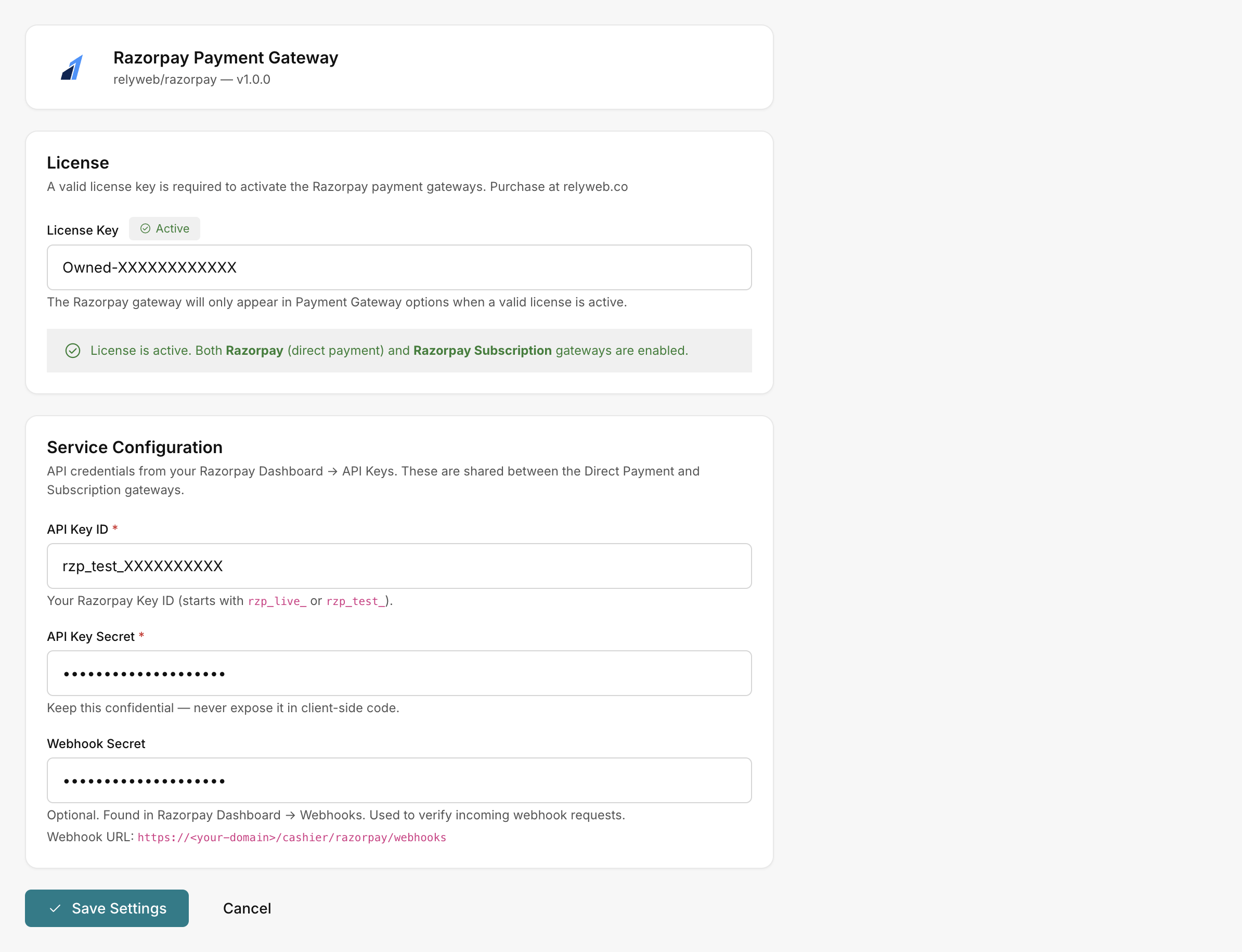 Admin → Plugins → Razorpay → Settings
License card
Enter your key into License Key and click Save Settings. The card reflects verification status:
| Badge | Meaning |
|---|---|
| Active (green) | "License is active. Both Razorpay (direct payment) and Razorpay Subscription gateways are enabled." |
| Not configured | No key entered yet. |
| Invalid (red) | The key did not validate; gateways stay hidden. The help text below shows the reason (e.g. "Remote Check Failed" or "No license key configured"). |
- Inactive warning: Displays "License is not active. Razorpay gateways will not appear in Payment Gateway options until a valid license is entered and saved."
- Verification check: Confirmed via local background checks against
relyweb.co. Temporary network hiccups are tolerated; re-saving Settings refreshes status. See Licensing.
Service Configuration card
Shared gateway credentials retrieved from Razorpay Dashboard → Settings → API Keys:
| Field | What to enter |
|---|---|
| API Key ID * | Placeholder rzp_live_.... Your Razorpay Key ID (starts with rzp_live_ or rzp_test_). |
| API Key Secret * | The matching secret (password field). Keep confidential — "never expose it in client-side code." |
| Webhook Secret (optional) | From Razorpay Dashboard → Webhooks. "Used to verify incoming webhook requests." |
Copy the displayed Webhook URL into your Razorpay dashboard webhook configuration:
https://YOUR_DOMAIN/cashier/razorpay/webhooksClick Save Settings when done.
Environment is chosen by the key prefix
There is no Sandbox checkbox. rzp_test_... keys run in test mode, rzp_live_... keys run in live mode. Swap the keys to switch environments.