
Appearance
Installation
Get Cashfree working in AcelleMail: upload the plugin, activate, enter your license and Cashfree keys, save. No core patches, no SSH.
Prerequisites: a server that meets the Requirements, an AcelleMail admin login, your relyweb.co license key, and your Cashfree App ID and Secret Key (Get your API keys).
1. Upload the plugin
Admin → Plugins → Upload Plugin → upload the archive from your relyweb.co client area (named like relyweb-cashfree-vX.Y.Z.zip). AcelleMail unpacks it and lists Cashfree among your plugins.
2. Activate
Find Cashfree in the plugin list → Activate. This registers the plugin; no gateway is visible yet.
3. Enter license and credentials
Admin → Plugins → Cashfree → Settings → fill in:
| Field | Value |
|---|---|
| License Key | Your key from relyweb.co |
| App ID | Your Cashfree x-client-id |
| Secret Key | Your Cashfree x-client-secret |
| Sandbox | Tick with Cashfree TEST keys; untick for live production keys |
| Webhook Secret (optional) | Endpoint-specific secret; blank verifies webhooks with your Secret Key |
Then Save Settings. Saving validates your license and stores the credentials.
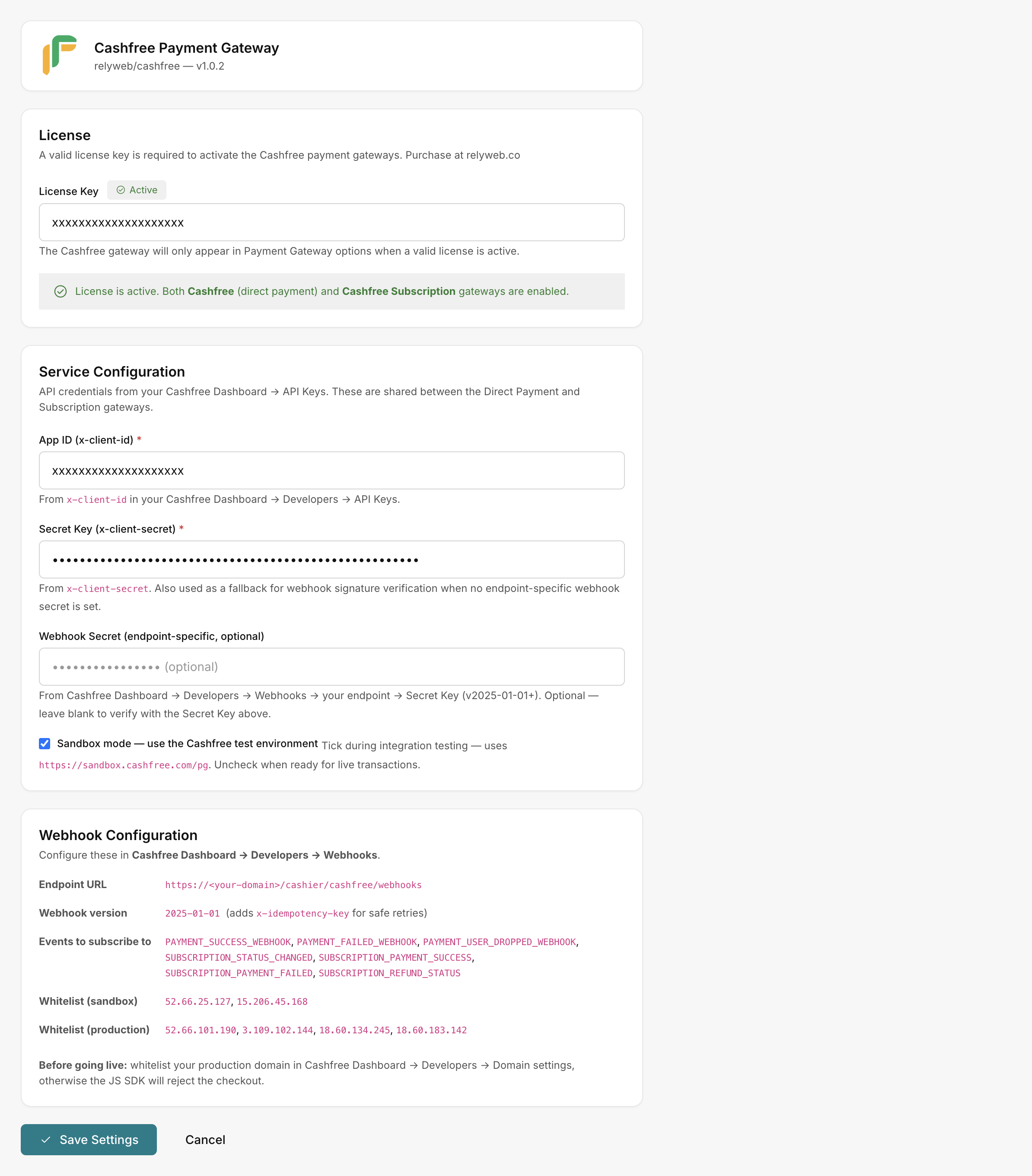 Admin → Plugins → Cashfree → Settings
Test first with Sandbox
Tick Sandbox, use TEST keys, and run test payments end to end before switching to live. See Going live.
4. Verify
Once saved with an Active license, Cashfree and Cashfree Subscription appear automatically in Admin → Payment Gateways — no manual "Add". Both gateways share the credentials you entered.
If they don't appear, the license may not be Active yet, or the server can't reach relyweb.co on port 443 — see Troubleshooting.
Next
- Configure webhooks so Cashfree can notify AcelleMail of payment and subscription events.
- Set up subscriptions to bill recurring plans.