
Appearance
Installation
Complete the installation of Zoho Payments for WHMCS: upload files, activate the gateway, enter credentials, generate an OAuth token, configure webhooks, and verify checkout.
Prerequisites: a server that meets the Requirements, a WHMCS admin account, your license key from relyweb.co, and a Zoho developer app — see the Zoho OAuth setup guide.
1. Upload the module
Upload the module's modules/ directory into your WHMCS root directory, preserving the folder structure:
- Places gateway files into
modules/gateways/. - Does not overwrite existing core WHMCS files.
Updating instead?
Overwrite the same files. See Updating for the manual-update flow.
2. Activate the gateway
Apps & Integrations → Zoho Payments → Activate.
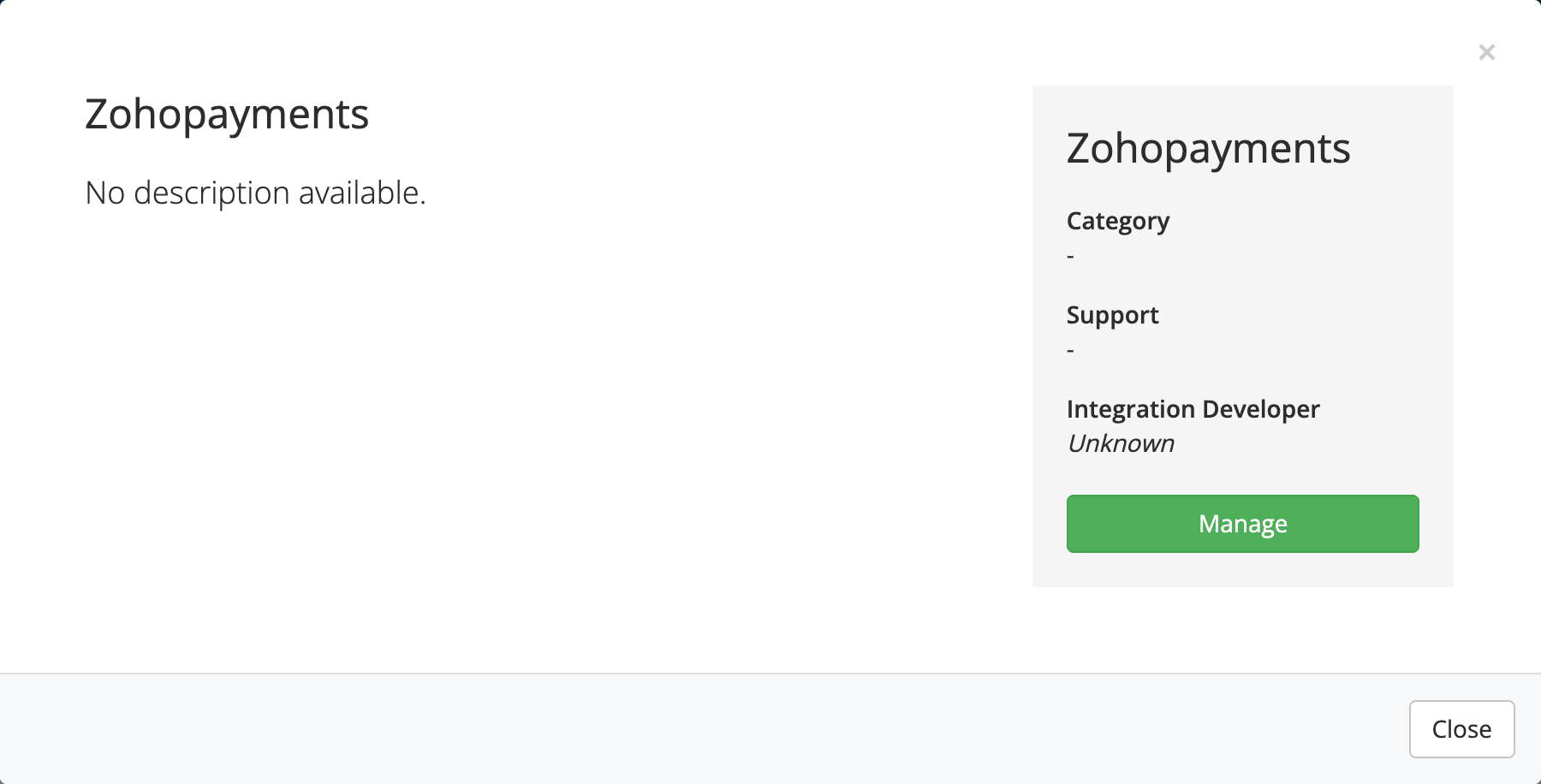 Apps & Integrations → Zoho Payments
The gateway then appears under Setup → Payment Gateways → Manage Existing Gateways, where its configuration form opens.
3. Enter your license and credentials
Setup → Payment Gateways → Zoho Payments → fill the fields → Save Changes. See Configuration for every field.
| Field | Source |
|---|---|
| License Key | relyweb.co — enables payment processing |
| Account ID | Zoho Payments account |
| Widget API Key | Zoho Developer Space |
| Client ID / Client Secret | OAuth app in the Zoho Developer Console |
| Data Center | IN (.in) or US (.com) — match your Zoho account |
4. Generate the refresh token
- Click the "Click Here to Generate Token" helper link.
- Authorise the app with Zoho when prompted.
- Paste the returned token into Refresh Token.
- Click Save Changes.
See the Zoho OAuth setup guide for full details.
5. Register the webhook
In your Zoho Payments dashboard, add a webhook pointing at your site:
https://yourdomain.com/modules/gateways/zohopayments/webhooks/paylink_webhook.phpSubscribe it to the Payment completed and Payment Link paid events, then copy the webhook secret into the gateway's Webhook Secret field and save.
HTTPS required
The webhook URL must be reachable over valid SSL. Without HTTPS, notifications won't arrive.
6. Test in test mode
- Set Test Mode to Yes and click Save Changes.
- Open an invoice in the client area and click Pay Now.
- Complete the payment in the widget modal.
- Verify the invoice updates to Paid with recorded fees.
- Switch Test Mode to No for production payments (see Going live guide).
Related pages
- Requirements — server and Zoho account
- Configuration — every gateway field
- Settings reference — gateway defaults reference
- Zoho OAuth setup — app, refresh token, webhook
- Widget checkout — how customers pay