
Appearance
Configuration
All settings live on one native page: Setup → Payment Gateways → Zoho Payments. Fill the fields, click Save Changes, and the gateway is ready — there is no separate addon area.
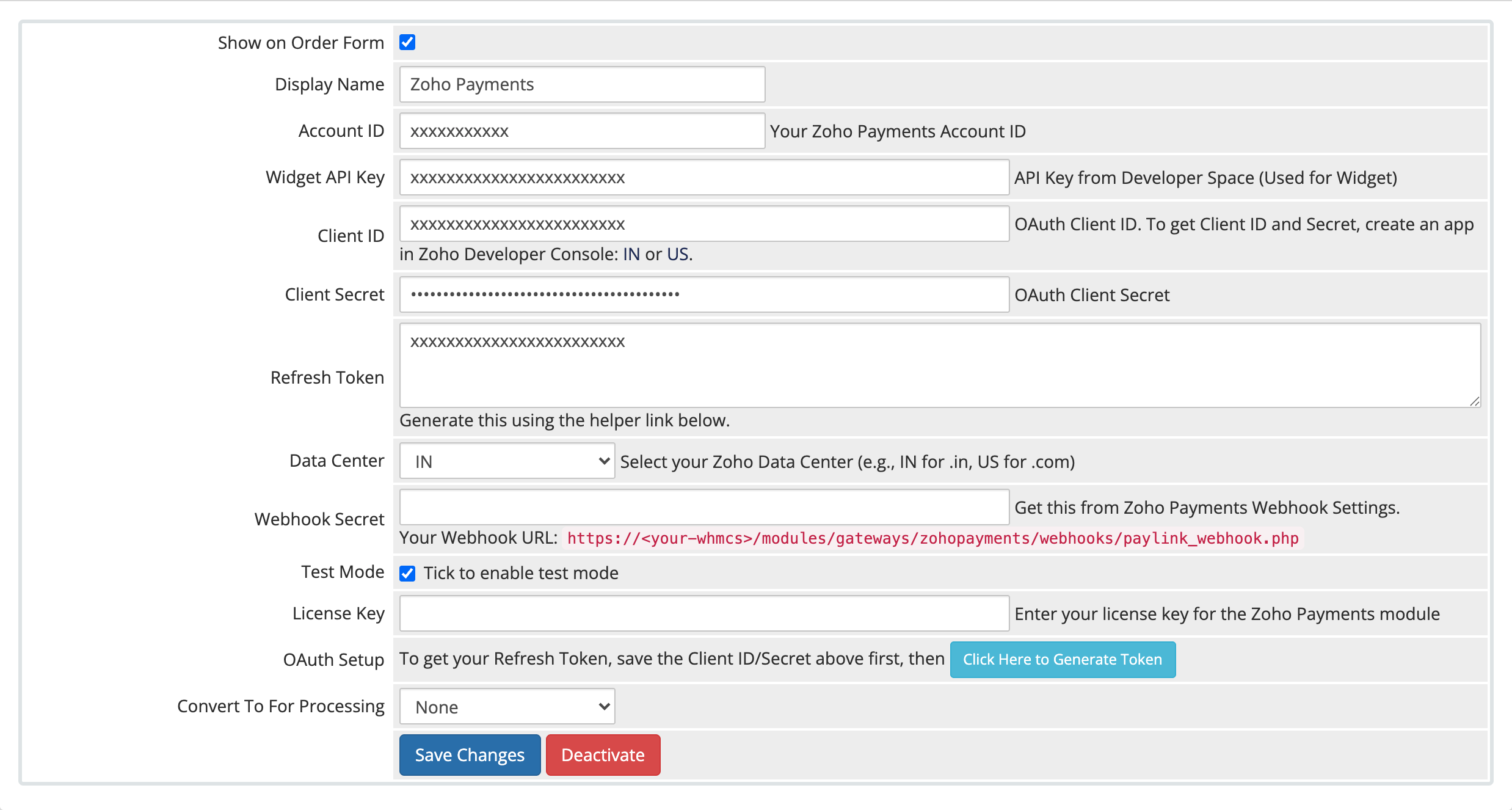 Setup → Payment Gateways → Zoho Payments
Fields
| Field | What to enter | Where it comes from |
|---|---|---|
| Account ID | Your Zoho Payments Account ID — tells the widget which account collects the payment | Zoho Payments account |
| Widget API Key | The API key that loads the payment widget on the invoice page | Zoho Developer Space |
| Client ID | OAuth Client ID identifying your integration to Zoho | Zoho Developer Console (OAuth app) |
| Client Secret | OAuth Client Secret paired with the Client ID; keep it private | Zoho Developer Console (OAuth app) |
| Refresh Token | Long-lived token that keeps the gateway connected; generated via the helper link, not typed by hand | Generate Token helper (see below) |
| Data Center | IN (.in, India) or US (.com, United States) — must match your Zoho account. Default IN | Your Zoho account region |
| Webhook Secret | Verifies Payment Link notifications; this field also shows your Webhook URL | Zoho webhook settings |
| Test Mode | Yes sandbox / No live. Default No | — |
| License Key | Enables payment processing; without an active key, new payments are blocked | relyweb.co |
Credential sources
- Account ID & Widget API Key: Zoho Payments dashboard and Developer Space.
- Client ID, Secret & Refresh Token: Zoho Developer Console OAuth app.
- Webhook Secret: Zoho Payments Webhook settings.
- License Key: RelyWeb client area at relyweb.co.
See the Zoho OAuth setup guide for detailed retrieval steps.
Generate the Refresh Token
- Enter Client ID and Client Secret → click Save Changes (enables the helper).
- Click the "Click Here to Generate Token" helper link.
- Authorise the app with Zoho when prompted.
- Copy the returned token, paste into Refresh Token → click Save Changes.
You only do this once. If you change your OAuth app or revoke access in Zoho, regenerate it with the same link. Full steps: Zoho OAuth setup guide.
Webhook Secret and URL
The Webhook Secret field also displays your Webhook URL:
https://yourdomain.com/modules/gateways/zohopayments/webhooks/paylink_webhook.phpAdd that URL as a webhook in your Zoho Payments dashboard, subscribe it to the Payment completed and Payment Link paid events, then copy Zoho's secret back into this field.
Secrets must match
The Webhook Secret must match Zoho's secret exactly, and the endpoint must use valid SSL. If mismatched, webhook notifications fail and Payment Link invoices will not automatically update.
Verify
Set Test Mode to Yes and save. Run a test invoice through checkout to confirm the Paid status updates correctly. Once verified, set Test Mode to No (see Going live guide).
Related pages
- Settings reference — every field with its default
- Zoho OAuth setup — create the app and refresh token
- Widget checkout — how customers pay
- Installation — the full setup sequence
- Licensing — Leased vs Lifetime and your key