
Appearance
Installation
Get PhonePe from files on disk to a working checkout: upload, activate, configure, register the webhook, test in sandbox, go live.
Prerequisites: a server that meets the Requirements, a WHMCS admin account, your PhonePe Client ID / Client Secret (see the PhonePe setup guide), and your PhonePe for WHMCS license key.
1. Upload the files
Merge the module's modules/ directory into the root of your WHMCS install, alongside your other gateways. Nothing existing is overwritten. Updating an existing install instead? See Updating.
2. Activate the gateway
Apps & Integrations → PhonePe → Activate.
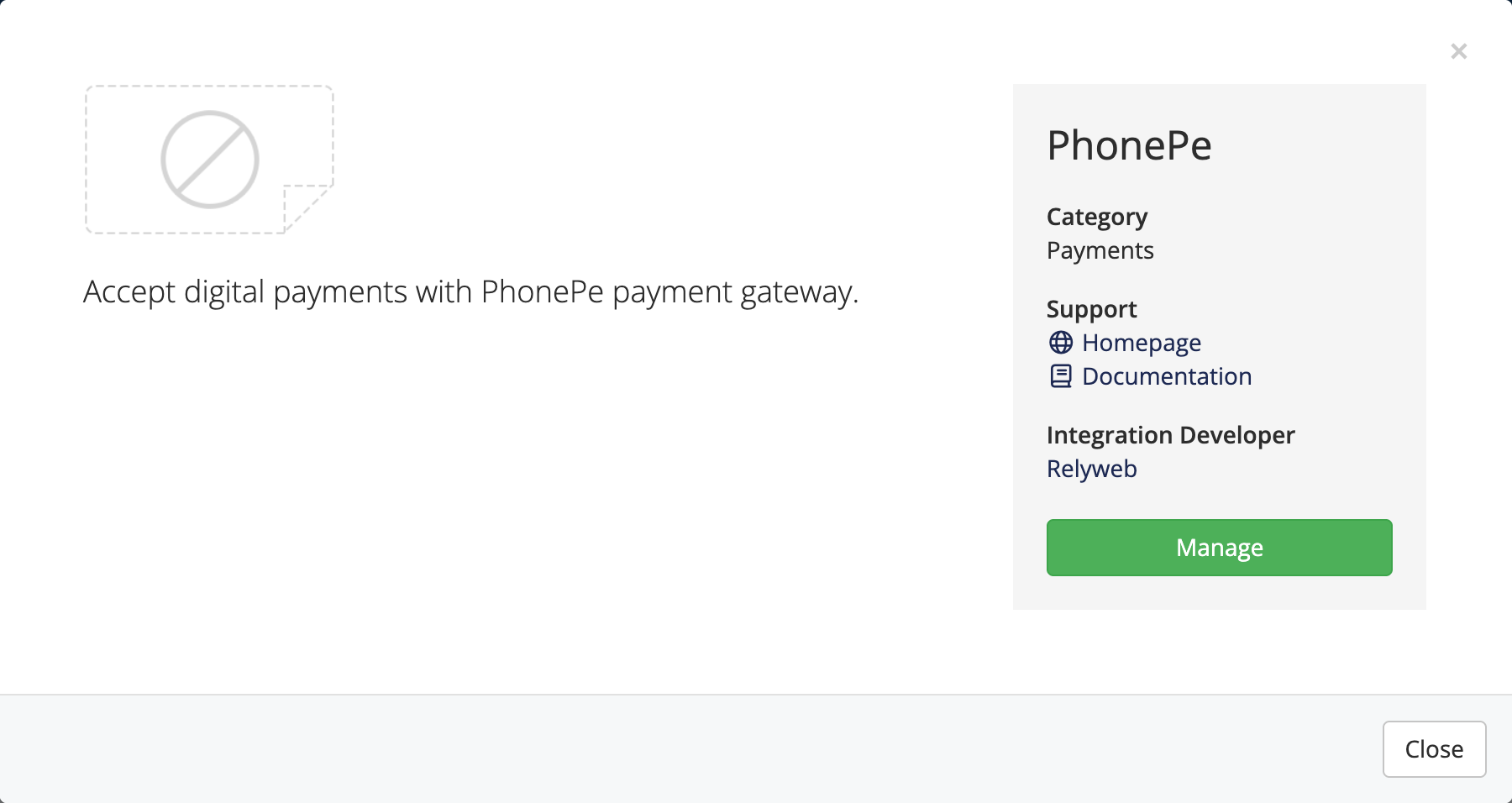 Apps & Integrations → PhonePe
Once activated, PhonePe appears on Setup → Payment Gateways under Manage Existing Gateways, where you configure it.
3. Fill in the settings
Setup → Payment Gateways → PhonePe → enter Client ID, Client Secret, and License Key → choose Payment Mode (Redirect or Iframe) → leave Sandbox Mode on for now → Save Changes. Every field is explained in Configuration.
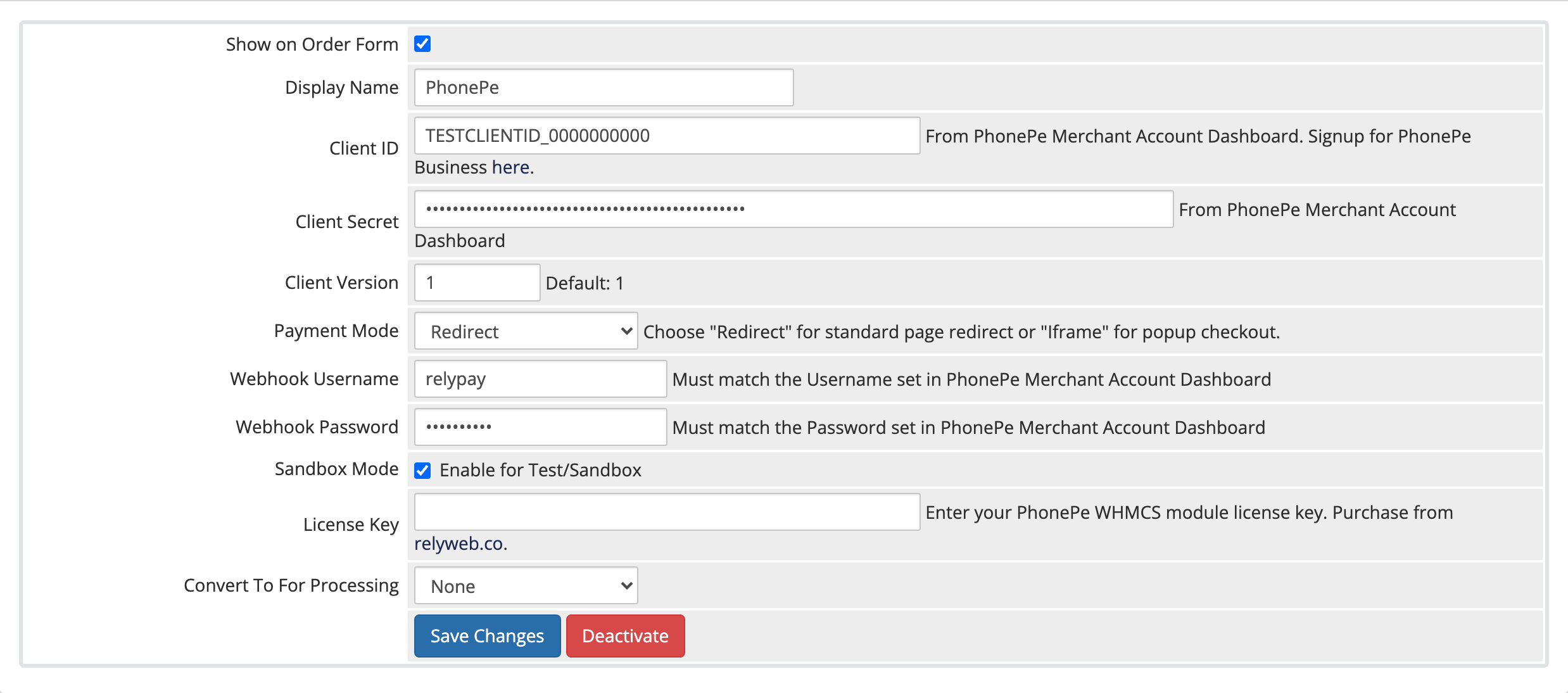 Setup → Payment Gateways → PhonePe
4. Register the webhook in the PhonePe dashboard
In the PhonePe merchant dashboard's webhook settings, set the Webhook URL to:
https://yourdomain.com/modules/gateways/phonepe/webhook.phpReplace yourdomain.com with your WHMCS domain. Define a username and password in PhonePe, then enter the identical credentials into WHMCS Webhook Username and Webhook Password.
HTTPS is required
The webhook URL must be reachable over a valid SSL certificate. Without HTTPS, PhonePe can't deliver payment results and invoices won't be marked paid automatically.
5. Test in sandbox
Verify checkout flow with Sandbox Mode enabled:
- Click Pay Now on a test invoice and complete sandbox checkout.
- Confirm the invoice automatically marks Paid and logs the fee.
- Check Utilities → Logs → Gateway Log to review the webhook and API transaction entries.
6. Go live
Setup → Payment Gateways → PhonePe → set Sandbox Mode to No → Save Changes. See Going live for the full checklist.
Verify
Confirm the sandbox test invoice is marked Paid in WHMCS, then repeat with one small real payment after switching Sandbox Mode off.
Related pages
- Requirements — check your server and PhonePe account
- Configuration — the gateway fields explained
- PhonePe setup — credentials and webhook
- Payment modes — redirect vs iframe
- Settings reference — every field at a glance