
Appearance
Configuration
Configure PhonePe on WHMCS's native gateway screen: Setup → Payment Gateways → PhonePe. Enter the fields below, then Save Changes.
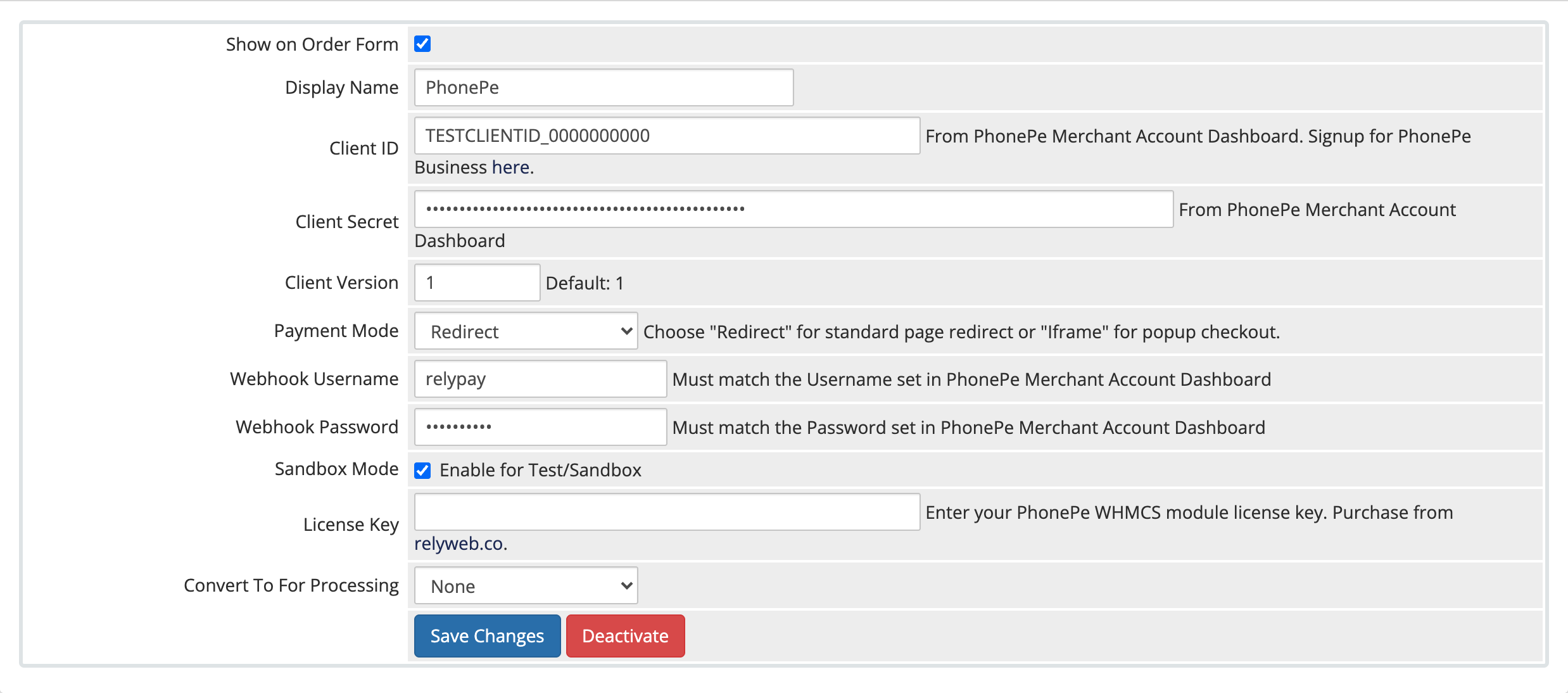 Setup → Payment Gateways → PhonePe
Fields
| Field | What to enter | Notes |
|---|---|---|
| Client ID | Your PhonePe API Client ID from the Merchant (Business) dashboard | Copy exactly — a stray character means PhonePe rejects the connection |
| Client Secret | The matching Client Secret | Sensitive; never share or post it |
| Client Version | Leave at the default 1 | Change only if PhonePe instructs you to |
| Payment Mode | Redirect (default) or Iframe | Redirect = PhonePe's full-page checkout; Iframe = in-page popup. See Payment modes |
| Webhook Username | The username you set on the webhook in the PhonePe dashboard | Must match the dashboard exactly |
| Webhook Password | The password you set on the webhook in the PhonePe dashboard | Must match the dashboard exactly |
| Sandbox Mode | Yes = test environment; No (default) = live | Confirm a sandbox payment works before switching to live |
| License Key | Your PhonePe for WHMCS key from relyweb.co | Validated at payment time; payments are disabled while inactive. See Licensing |
Don't have credentials yet? The PhonePe setup guide walks through generating them.
Register the webhook
PhonePe confirms every payment by webhook. Register this URL in the PhonePe dashboard's webhook settings:
https://yourdomain.com/modules/gateways/phonepe/webhook.phpReplace yourdomain.com with your WHMCS domain, and make sure it's reachable over HTTPS.
Both sides must match
Matching credentials are required for webhook authentication:
- Auth failure: Mismatched Webhook Username or Webhook Password fails the SHA256 check.
- Impact: PhonePe webhooks are rejected and invoices remain unpaid. Set identical credentials in both dashboards.
Verify
Save Changes, then place a sandbox test order and confirm the invoice is marked Paid. If a payment fails, check Utilities → Logs → Gateway Log — it records each step of the exchange.
Related pages
- Settings reference — every field with defaults
- Installation — upload, activate, configure
- PhonePe setup — credentials and webhook
- Payment modes — redirect vs iframe
- Licensing — how the license types work