
Appearance
Installation
Get PayGlocal from files to a working checkout: upload, place keys, activate, configure, and test in sandbox. Do these in order — the keys must be in place before you activate.
Prerequisites: a server that meets the Requirements, your PayGlocal keys generated and downloaded, and your Merchant ID (MID) and License Key to hand.
1. Upload the module
Merge the module's modules/ and includes/ directories into your WHMCS root, alongside your other gateways. The package ships both gateways (payglocal.php and payglocalrecurring.php), the shared payglocal/ code directory, both callback handlers, and the recurring hook loader (includes/hooks/payglocalrecurring_cron.php).
2. Place your RSA keys outside the web root
Upload your two .pem files — merchant private key and PayGlocal public key — to a directory outside the web root, then lock them down:
chmod 640 /home/user/keys/merchant_private.pem
chmod 640 /home/user/keys/payglocal_public.pem
Keep private keys out of the web root
Never place a key under public_html/httpdocs. Use a path like /home/user/keys/ and point the gateway at each file by its absolute path.
3. Activate the gateway
Apps & Integrations → PayGlocal → Activate. The gateway installs the JWT/crypto libraries it needs on first activation. PayGlocal then appears on Setup → Payment Gateways under Manage Existing Gateways.
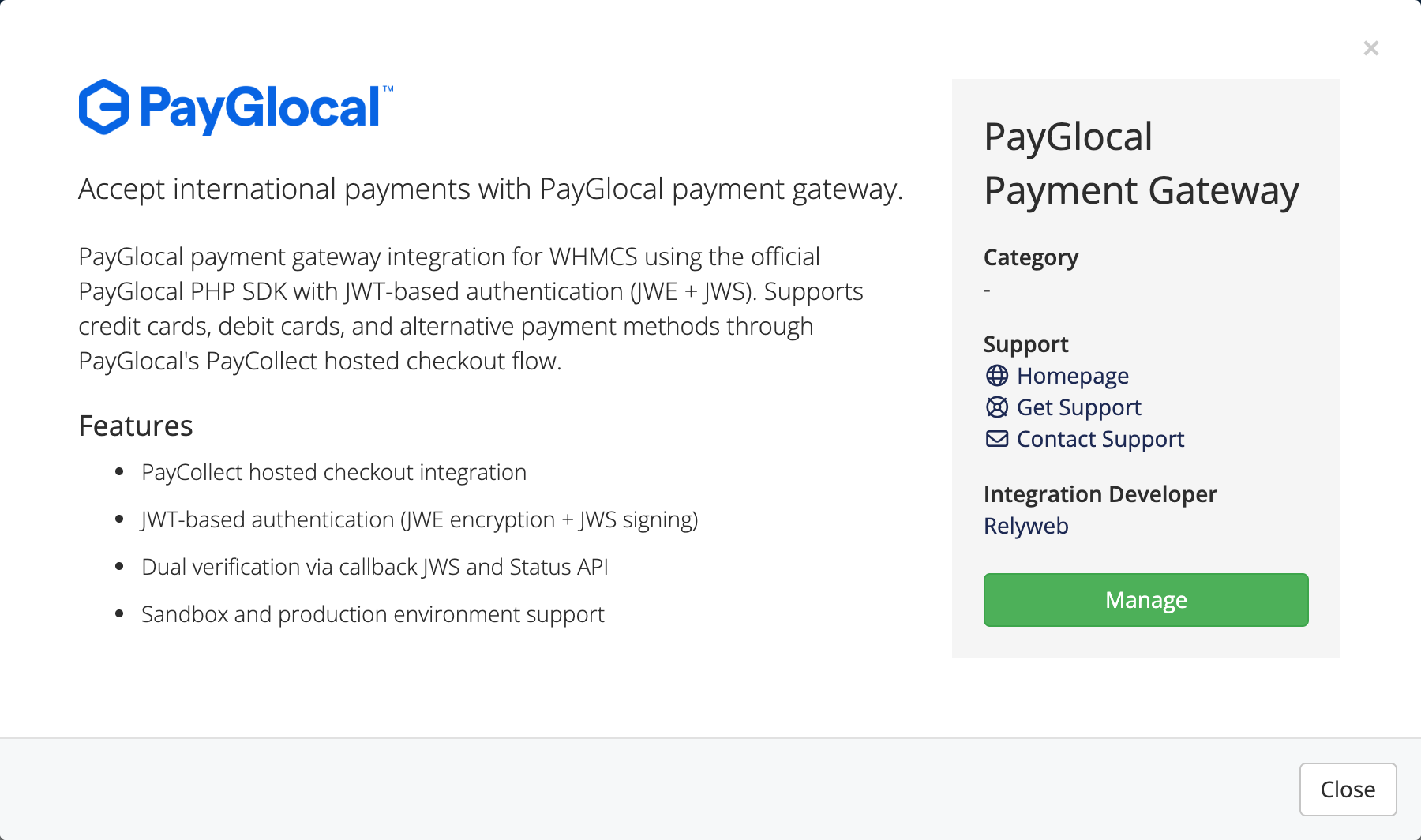 Apps & Integrations → PayGlocal
4. Fill in the settings
Setup → Payment Gateways → PayGlocal. Enter your License Key, Merchant ID (MID), and the path and KID for each key. Set Test / Sandbox Mode to Yes for now. See Configuration and the Settings reference.
5. (Optional) Activate PayGlocal Recurring
For automatic renewals, also activate PayGlocal Recurring under Apps & Integrations → PayGlocal Recurring → Activate. It reuses every credential from the main PayGlocal gateway — you set only its two SI options (SI Maximum Amount Per Payment and Days Before Due Date to Charge).
Configure PayGlocal first
PayGlocal Recurring reads its license, Merchant ID, RSA keys and test mode from the main PayGlocal gateway at runtime. PayGlocal must be activated and fully configured first, or the recurring gateway shows a configuration error. Recurring also needs the WHMCS daily cron running to charge invoices. See How recurring payments work.
6. Save
Click Save Changes. PayGlocal is now a live payment option on your invoices.
7. Verify — take a sandbox test payment
Set Test / Sandbox Mode = Yes, generate a test invoice, and complete payment:
- Confirm redirection to the hosted PayCollect checkout.
- Complete the sandbox payment and return to WHMCS.
- Verify the invoice status transitions to Paid.
- Proceed to the going-live guide.
Something not right?
Open Utilities → Logs → Gateway Log — it records each payment attempt and is the fastest way to see why a test didn't complete. See Troubleshooting.
Related pages
- Requirements — confirm your server and account
- PayGlocal key setup — generate your RSA keys
- Configuration — fill in the gateway settings
- Settings reference — every field explained
- How recurring payments work — set up automatic renewals
- Going live — switch from sandbox to production