
Appearance
Configuration
Configure PayGlocal on WHMCS's native gateway page — there is no separate addon screen. Fill the fields in order, then save and test.
Prerequisites: the gateway activated and your keys generated.
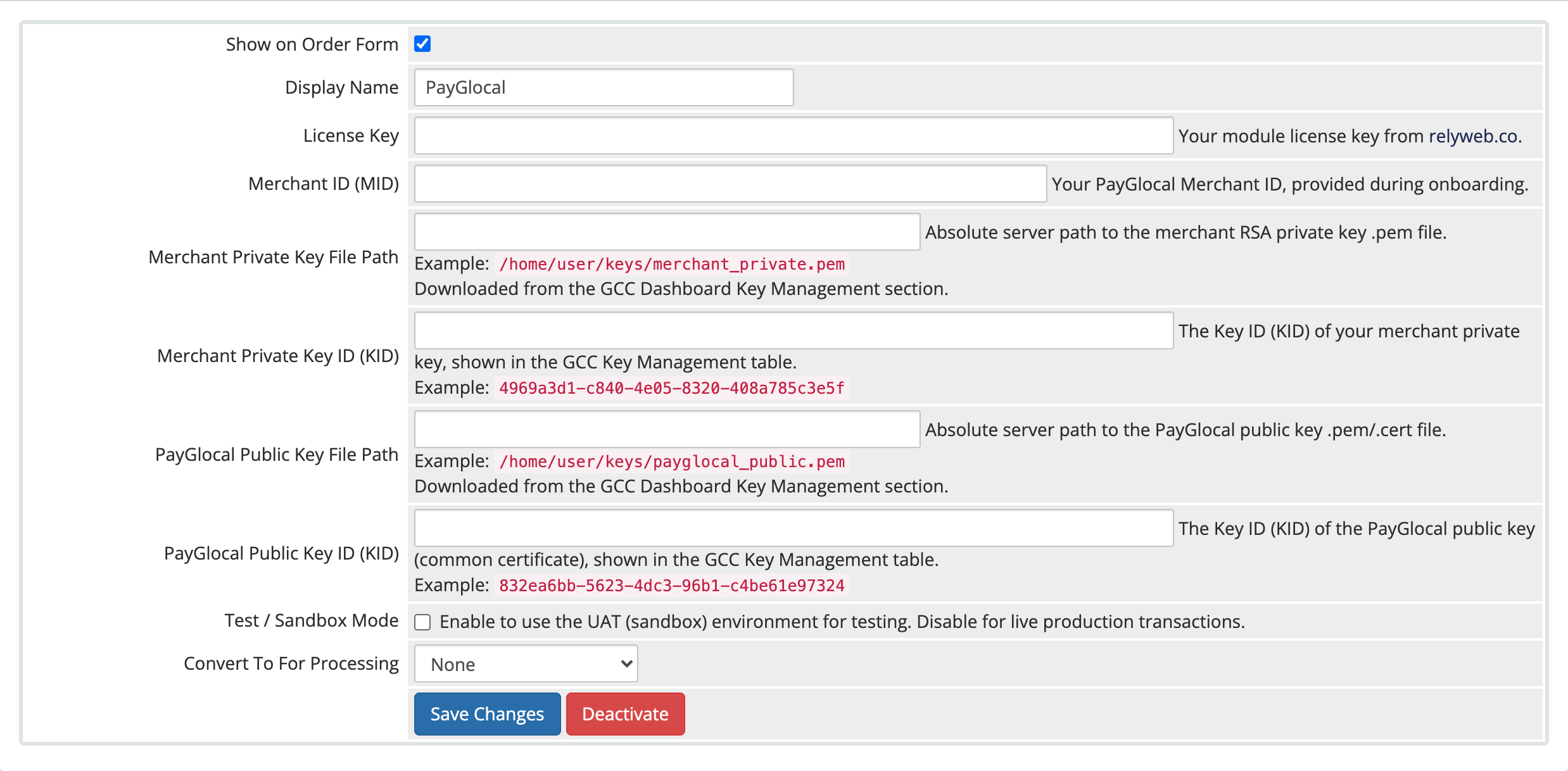 Setup → Payment Gateways → PayGlocal
Fill in the fields
At Setup → Payment Gateways → PayGlocal:
| Field | What to enter |
|---|---|
| License Key | Your PayGlocal license key from your relyweb.co account. Enables payment processing while active. |
| Merchant ID (MID) | Your PayGlocal MID from onboarding. Must match your live (or UAT) merchant account exactly. |
| Merchant Private Key File Path | Absolute path to your merchant private key .pem (e.g. /home/user/keys/merchant_private.pem), stored outside the web root. |
| Merchant Private Key ID (KID) | The KID shown for that key under Key Management in PayGlocal's GCC dashboard. |
| PayGlocal Public Key File Path | Absolute path to PayGlocal's public key .pem. |
| PayGlocal Public Key ID (KID) | The KID for PayGlocal's common certificate. |
| Test / Sandbox Mode | Yes = PayGlocal UAT (sandbox); No = live. Defaults to No — set to Yes before your first test. |
Match keys to the environment
Use UAT keys and KIDs while in sandbox, and production keys and KIDs when live. A mismatch between the key, its KID, and the environment is the most common cause of a signature-verification failure. See the key setup guide.
Save and verify
- Click Save Changes.
- With Test / Sandbox Mode = Yes, create a test invoice and pay it through PayGlocal end to end.
- Confirm you're redirected to the hosted checkout, pay, return, and see the invoice marked Paid.
Check the Gateway Log
Every attempt is recorded under Utilities → Logs → Gateway Log. If a test payment doesn't complete, that's the first place to look.
Configure recurring (optional)
If you activated the PayGlocal Recurring gateway for automatic renewals, configure it at Setup → Payment Gateways → PayGlocal Recurring. It does not repeat the credential fields above — it inherits your License Key, Merchant ID, RSA keys and test mode from the main PayGlocal gateway at runtime. You set only two SI options:
| Field | What to enter | Default |
|---|---|---|
| SI Maximum Amount Per Payment | The mandate ceiling as a multiple (1x–5x) of the first invoice amount. A later charge above this multiple is skipped. Example: 3x on a first invoice of 100 USD allows charges up to 300 USD. | 2x |
| Days Before Due Date to Charge | How many days (1–5) before an invoice's due date to attempt the automatic charge. Example: 2 days on an invoice due March 20 charges on or after March 18. | 2 |
Activate and configure PayGlocal first
PayGlocal Recurring only functions when the main PayGlocal gateway is active and fully configured, and it needs the WHMCS daily cron running. See How recurring payments work.
Related pages
- PayGlocal key setup — generate the keys and KIDs
- Settings reference — every field, at a glance
- How payments work — the flow behind the scenes
- How recurring payments work — the SI options behind the scenes
- Going live — switch from sandbox to production
- Licensing — how your license enables payments